Setting up Property Types
While some property types already exist in the system (e.g. the PIES property group), you might also want to create your own. This can be done with the Maintain > Property Types menu.
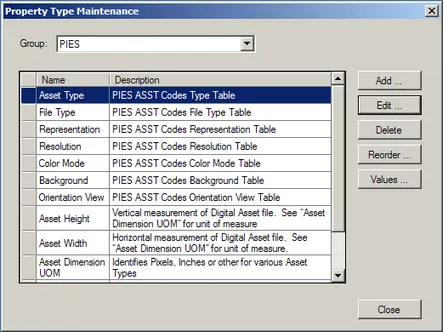
The screen is brought up without a “Group” selected. Use the drop-down to select an existing group to work with. If you want to work with a new group, you must first create it using the Maintain > Property Type Groups menu.
The “Add” and “Edit” buttons let you maintain new and existing Properties within the group. The “Delete” button will remove the selected property. The “Reorder” button allows you to change the display order of the properties within the group. Finally, the “Values” button shows the current values used by the property and gives you the ability to edit those values and associated codes. If a property uses the “Limit values to defined list” option, you must supply the valid values on the Property Values screen.
Here is the screen used to maintain a property type:
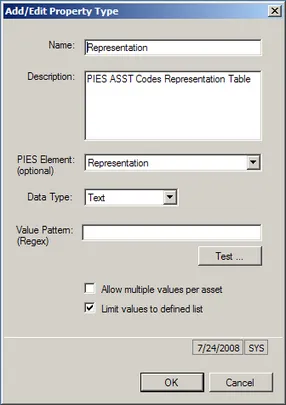
You must supply a “Name” and “Data Type”. The “PIES Element” is used to tie the property back to the AAIA PIES standard. The “Value Pattern” (and Test button) is an advanced feature that allows you to set up edit checks on entered property values.
The “Allow multiple values per asset” check box determines if you can have more than one value for a property. This might be used, for example, with a “keyword” property type.
The “Limit values to defined list” check box determines if the user can add their own free-form values or must select them from a pre-populated list.