Brand Support in AceMapper
AceMapper allows you to map your application data once using a primary brand (master part number) and then export multiple brands using the same or different part numbers. These alternative brands and part numbers can be easily set up and loaded into the system. You can then Publish and Export each brand independently for a mapped Document.
Every document must be assigned a “Primary Brand” when it is first created. Once data has been imported, the document’s primary brand cannot be changed. Brands are managed with the Brand Maintenance screen (accessed by the Maintain > Brands… menu). That screen allows you to add, edit, delete and merge brands (and associate AAIA brand codes).
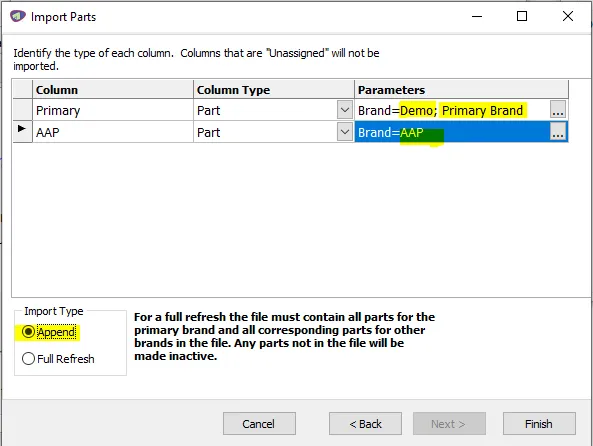
Part Numbers for alternative brands (sometimes called Trading Partner Brands) are imported using the Part Maintenance screen (accessed by the Maintain > Parts… menu). The file you import must have the primary branded part number and any number of other branded part numbers on the same row. An import wizard allows you to load a variety of file layouts.
The Parts Report can be used to show what parts are currently loaded, with each brand shown in a separate column. In addition, each part number has a Status Indicator (Active/Inactive) and Availability Date. If the brand you are publishing contains a part number that is inactive or not yet available, it is not output with that group.
Each brand must be “Published” before they are Exported. On export, the primary branded applications are used but the primary part number is interchanged to the target brand. Only applications with a target branded part number will export. If you use qualifiers with a “part” parameter, the target branded part number will be inserted in the qualifier.