Mapping Comments
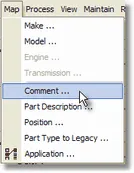
Mapping Comments is available whenever a Comment column has been defined during the Import Applications process or when mapping a Legacy file and a migration comment was auto-generated. In order to properly map applications, you must translate the information identified as a Comment column into well-defined expressions that relate to VCdb attributes, notes, qualifiers or positions. The Map Comments function is used to set up these translations and is launched from the main menu, using Map | Comments as shown below.
When the Map Comments screen is first displayed, there will be a pause while the program searches the Comment columns (defined within the current input source) and creates a list of unique comments found in those columns. These comment strings are displayed on the screen along with a count of the total number of unique comments that need to be translated. Your job is to provide a translation or “map” for all of the comments in the file.
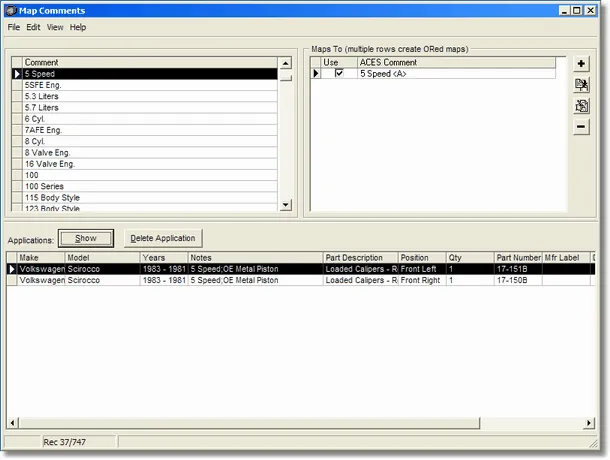
To use the Map Comments screen
-
Select Edit | Mark All Single Maps Used to automatically activate any comment maps that you have already defined in other documents. A map is not enabled until it has the Use box checked. The reason it only activates “single maps” is because a comment may have more than one mapping defined for it. In these cases, it is necessary to select the desired map manually.
-
To create a new map (rather than just activate an existing one), double-click on the comment you are mapping or press the plus button in the Maps To panel. This will bring up a second screen where you can make further mapping choices.
-
Use the Show button to display all of the source applications that contain the selected comment string. It is sometimes helpful to see the comment in context with the rest of the application.
-
Select Edit | Edit Map (or the edit icon) to make changes to the current Maps To row (indicated by the little arrow in the first column). This will bring up a second screen where you can make any changes required.
-
Select Edit | Add Copy (or the add copy icon) to make a duplicate map and bring up the edit screen. This is helpful when you have an OR condition with common features.
-
Select Edit | Delete Map (or the minus symbol) to completely remove the map.
Note: This function removes the map for all documents and should be used with caution. A confirmation dialog is displayed telling you how many documents are currently using that map. If you just want to remove the map for the current document only, simply uncheck the Use box.
-
Use the Delete Application button only if you have an application that is obviously incorrect. This is a permanent action that cannot be reversed and will keep that application from ever showing up again, even if re-imported. For this reason, it is always preferable to remove any incorrect applications from the source document and re-import.
-
Select Edit | Ignore Comment if you don’t want to map the comment to anything. This option is only available if no map already exists. If you were to just leave the comment unmapped, it would not allow any of the applications that have this comment to create an ACES application — it would show up as an unmapped comment error.
-
Use the View | Apply Filter command (or Ctrl-F) to show only the comments that have specific entered text. You are prompted for the filter text and then press OK. To remove the filter, select View | Show All.
Multiple options and exceptions
Comment mapping allows for multiple options from the same attribute family (meaning OR) and uses of “except” with an attribute. A comment such as (FWD or AWD) Exc. Coupe does not need to be broken up and translated by the mapper — it will be broken up and translated automatically when the application is created.
EngineBase sub-attributes such as Liters and Cylinders can also be used in the comment. They will be translated to EngineBase attributes using the VCdb universe when the applications are created.