Flowing blocks across instead of down
The standard way to flow columns in AcePrint is called “newspaper-style”:

But what if, for example, you wanted to produce a Buyer’s Guide with part number blocks flowing left to right instead:
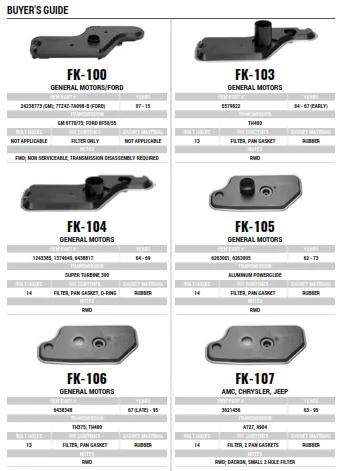
Notice that the part numbers in the source file were sorted FK-100, FK-103. It would be simple to set up a two-column section with a Layout at the table Data level (in this case with 11 rows). But the part numbers would be listed down the page, with FK-105 at the top right.
To get what we want, we added a special control column to the source data allowing us to keep two part numbers together in rows. Below, we added a “Block” column with a sequential number incrementing every two rows.
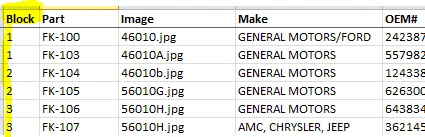
Settings:
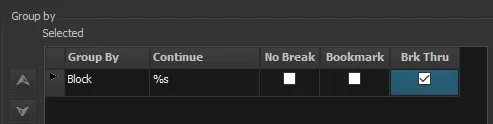
Add a “Group By” to the Table definition page on the “Block” column and indicate that it is a “Brk Thru” head. Also on the Table definition page, deselect the “Fill to table height with blank row” option.
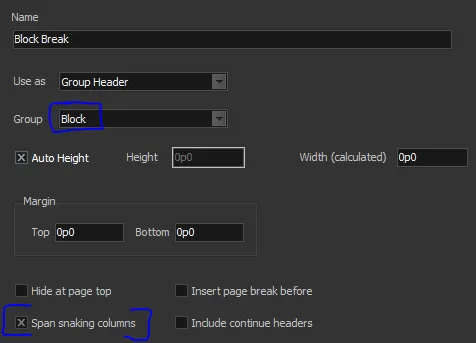
Then, add a Group Header to the table using the “Block” group. Select Auto Height (which becomes 0p0 because it has no text box associated with it). Then select the “Span snaking columns” option.
A great by-product of this approach is that each row will always align at the top. So you could have wrapping fields that cause blocks to have different heights, but they will still align at the top.