SQL Server Database Files
Database Files
There are two files used by SQL Server, one with a .mdf extension and another with .ldf (for example AceMapper.mdf and AceMapper.ldf). Both of these files must be located on the hosting SQL Server computer and “attached” using SQL Server Management Studio Express (SSMSE).
File Location
Open SSMSE and “Connect” to your Server. If running SQL Express, the server name will be:
(local)\SQLEXPRESS
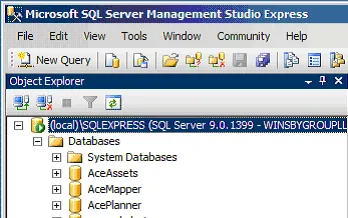
Use Windows Authentication. You should then see your SQL Server instance as the root of a listing on the left. Open the Database directory and you should see something like this:
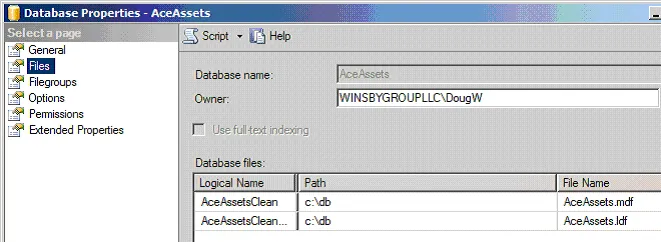
To find out where the database files are located, right click on the database and select “Properties”. Select the Files “page” and scroll the Database files grid until you see “Path” and “File Name”. This shows both the file names and the location on the server.
Compacting The Database Files
Before detaching a database, it is a good idea to compact it. You do that by opening a query window and entering a sql stored procedure call.
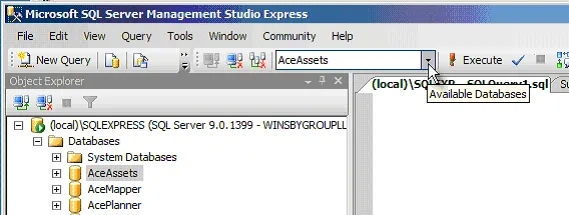
To open a query window, select the database and press the “New Query” button in the toolbar. Make sure that your database is shown in the drop down box in the tool bar. Here we have a query window open for the AceAssets database:
Copy and paste the following command into the query window on the right:
backup log AceMapper with truncate_only
go

DBCC SHRINKDATABASE (AceMapper)
go
Change the two occurrences of the database name to your database name. Press the “Execute” exclamation mark button in the toolbar.
Detaching The Database Files
Select the “master” database in the dropdown on the toolbar. Copy and paste the following command into the query window on the right (erasing anything already there). Make sure you change the name to your database name:
sp_detach_db AceMapper
Zipping up the Database Files
Use Windows Explorer (or other file manager) to zip up the files identified in the File Location section above. You should end up with a single zip file with the .mdf and .ldf files in it.
Attaching The Database Files
Select the “master” database in the dropdown on the toolbar. Copy and paste the following command into the query window on the right (erasing anything already there). Make sure you change the name to your database name:
sp_attach_db 'AceMapper','c:\db\AceMapper.mdf','c:\db\AceMapper.ldf'
The first ‘AceMapper” above is the logical database name. The others are the actual file names with full paths. (It is a good practice, however, to locate the mdf and ldf on separate disks if possible.)