Troubleshooting SQL Server Connections
If you are unable to connect to the SQL Server database, check the following:
-
Make sure you have Microsoft OLE DB 18.7.4 or later installed on the client machine.
You can check if it is installed by looking for “Microsoft OLE DB Driver for SQL Server” in the list of installed programs.
control appwiz.cplTo check the version, you can run the following PowerShell command:
$results = @()

$paths = @(
   "HKLM:\SOFTWARE\Microsoft\Microsoft OLE DB Driver for SQL Server",
   "HKLM:\SOFTWARE\WOW6432Node\Microsoft\Microsoft OLE DB Driver for SQL Server"
)

foreach ($path in $paths) {
   if (Test-Path $path) {
      $entry = Get-ItemProperty -Path $path | Select-Object PSChildName, InstalledVersion
      $results += $entry
   }
}

$results | Sort-Object PSChildName, InstalledVersion -Unique
If it is not listed (or is older than 18.7.4) download and install this 64bit version (released May 9, 2025):
ℹ️Note: You can safely have multiple versions of the Microsoft OLE DB Driver for SQL Server installed side by side. Install the x64 version even if running a 32-bit application, as the x64 version is compatible with both 32-bit and 64-bit applications.
-
Ensure that the SQL Server service is running on the database server.
-
Verify that you are using the correct server name and database name.
-
If you are using integrated security, make sure your Windows account has permission to access the database.
-
Check for any firewall settings that may be blocking access to the SQL Server.
-
Review the SQL Server error logs for any relevant error messages.
-
If you are using a non-default instance of SQL Server, ensure that the instance name is correctly specified in the server name field. A named instance has a dynamically assigned TCP port. If you want to connect to a named instance, the SQL Server Browser service must be running on the server.
-
SQL Server Configuration Manager is a tool that allows you to manage the SQL Server services, network protocols, and other configuration settings on the client machine. You can use it to check if the SQL Server Browser service is running and if the TCP/IP protocol is enabled.
To open SQL Server Configuration Manager, search for it in the Start menu or run
SQLServerManager<version>.msc(where<version>corresponds to your SQL Server version, e.g.,SQLServerManager13.mscfor SQL Server 2016). Or search for Computer Management in the Start menu, then navigate to Services and Applications > SQL Server Configuration Manager. -
If you are connecting to a remote SQL Server, enable TCP/IP protocol in SQL Server Configuration Manager and ensure that the SQL Server Browser service is running.
On the Connect to Server dialog, make sure to check the “Trust server certificate” option if you are using a self-signed certificate or if the server’s SSL certificate is not trusted by your client machine.
You can test the connection with the following powerShell command:
Test-NetConnection -ComputerName <server_name> -Port 1433Replace
<server_name>with the actual name or IP address of your SQL Server. This command checks if the specified port is reachable from your machine (1433 is the default). If the port is blocked, you will need to adjust your firewall settings or network configuration. -
If you are using a firewall, ensure that the necessary ports (default is TCP 1433) are open to allow communication with the SQL Server.
-
If you are still having trouble, try connecting to the database using SQL Server Management Studio (SSMS) to see if the issue is specific to our software or a more general connectivity problem.
Here is what the SSMS connection dialog looks like:
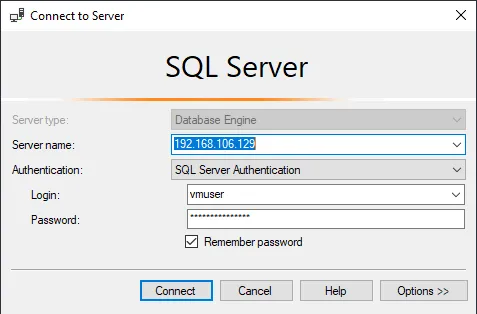
In this example, we are connecting to an IP address on our internal network using TCP/IP protocol. You can also use the server name and instance name if applicable.
The authentication method can be either Windows Authentication (integrated security) or SQL Server Authentication (username and password, as shown here). Use the method and credentials provided by your database administrator.
ℹ️Use the same server name and database name as you would in our software. If you can connect successfully with SSMS, then the issue may be specific to our software’s configuration or installation.

References
If you continue to experience issues, contact your database administrator for assistance or refer to these articles from Microsoft:
Overview
https://learn.microsoft.com/en-us/sql/sql-server/connect-to-database-engine
https://learn.microsoft.com/en-us/sql/relational-databases/lesson-2-connecting-from-another-computer
OLE DB Connectivity
https://learn.microsoft.com/en-us/sql/connect/oledb/release-notes-for-oledb-driver-for-sql-server