Template Types
Each template variable requires a “Type” which defines how the information is displayed in the output Excel file.
| Type | How Stored | Style |
|---|---|---|
| string | string value | left aligned |
| number | string value | format integer number as text, right aligned |
| number! | native Excel value | general integer number format, right aligned |
| float | string value | format floating point number as text, right aligned |
| float! | native Excel value | general floating point number format, right aligned |
| float2 | string value | format number as text, right aligned |
| float2! | native Excel value | number format “0.00” |
| float4 | string value | format number as text, right aligned |
| float4! | native Excel value | number format “0.0000” |
| date | string value | format as text, left aligned |
| date! | native Excel value | formatted as “yyyy-mm-dd”, left aligned |
Final Data Conversion
When the variable data is written to the template file, the second data conversion (and presentation) is performed.
⚠️Note that the “!” styles should not generally be used because native values might not be presented properly. (There are cases, however, where the receiver may request this format.)
For example, a “price” source field would not have trailing zeros if displayed as “number!” (i.e. 4.000 would become 4). It would be up to the receiver to process that data properly.
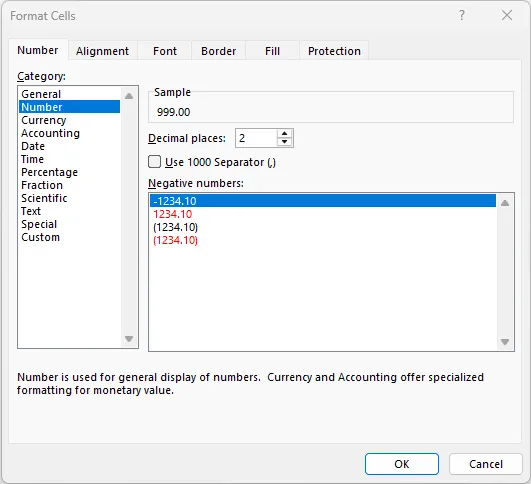
The “native” numeric styles will, however, use the Excel “NumberFormat” to set the number of Decimal places for display. This is identical to the Excel Format Cells dialog as shown below: