PIESCentral Installation Instructions
The PIESCentral administration program can be installed on any PC matching the minimum hardware requirements. When run, it will look like the following toolbar:

Before installing the PIESCentral software, please make sure the required Microsoft software is installed on the Client by following the instructions for the Client PC Requirements in the Hardware and Software requirements document.
⚠️ Note: The PIESCentral empty repository database must be restored to a SQL Server on a local network accessible from the administration program. When you run the program the first time, it will ask you to register your product and connect to your repository database.
Install PIESCentral Administration Program
(Download from the link sent to you via email.)
Getting Started
-
Double-click on the downloaded setup program and follow the prompts.
-
Run PIESCentral by double-clicking on the icon added to your desktop.
-
On the registration screen, enter the provided registration code, company name and unique machine name.
-
On the Login Connection tab, select the server (“(local)\sqlexpress” if running SQL Express) and the database. We recommend using Integrated security. Then select the PIESCentral repository database from the dropdown list.
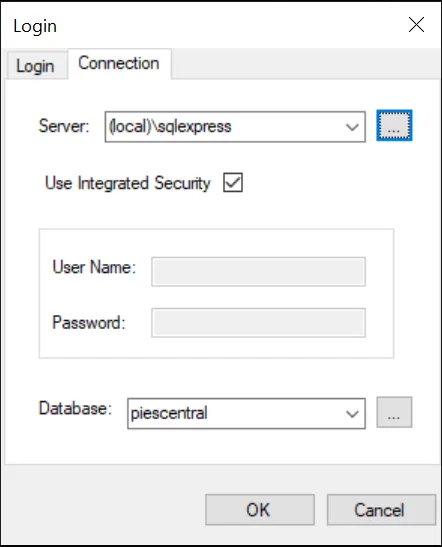
You should not need to use the “Login” tab with Integrated Security because user credentials are taken from your current Windows login.
Setup a Backup Procedure ⚠️
It is very important to create a backup/restore process that is scheduled, automatic and verifiable. Please check with your DBA to make sure all PIESCentral databases are in the backup rotation. See the related articles for backup options and best practices.