Advance Auto Tutorial
This tutorial will guide you through the process of setting up a Trading Partner export for Advance Auto Parts. This includes configuring data sources, import scripts, and price sheets specific to a customer’s requirements.
We will use a fictitious company called “Acme Auto Parts” as our primary brand. Acme sells parts under its own brand and also sells parts specifically for Advance Auto Parts. The Advance Auto Parts specific data will be stored in a separate data source.
”Acme Primary” data source
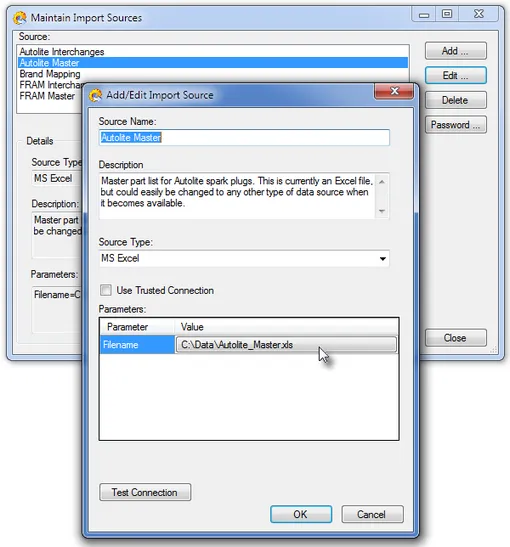
The data source called “Acme Primary” points to an Excel file of Acme part numbers. This file contains the primary branded part numbers and information which is not brand-specific.
You can download the sample data here.
a. Select the data source, press Edit…
b. Click on the path name Value and select the supplied “Acme_Primary.xls”.
Add “Acme AAP” data source
Add a new data source for the Advance Auto specific data.
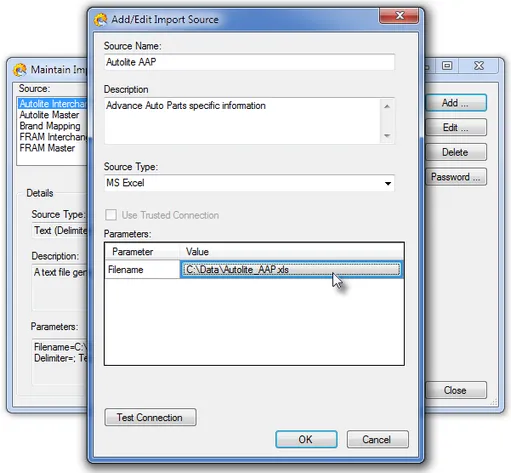
a. On Maintain Import Sources screen, press the Add… button
b. Fill in the form as shown above.
Add “Acme AAP” source to “Acme” Import Script
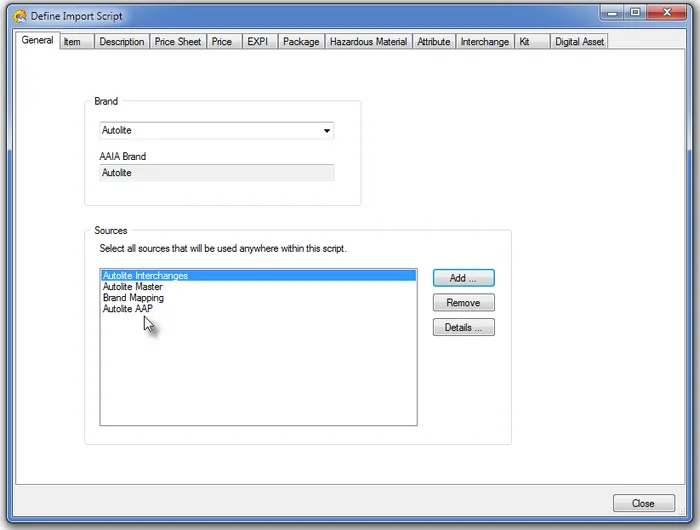
a. On Maintain Import Scripts screen, select Acme and press the Script… button
b. In the Sources frame, press the Add… button
c. On the Select Import Source screen, select “Acme AAP” and press OK. The screen should look like above.
Change “Acme” Import Script — Item / Source Description Tab
Since we changed the structure of the Excel file, we need to select the correct worksheet to use. All of the data for the primary file is found on the DATA worksheet.
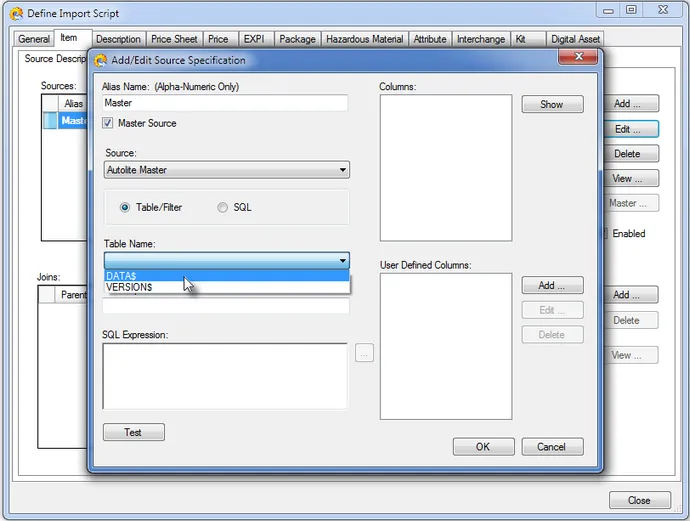
a. On the Source Description sub-tab, press the Edit… button to change the Source Specification
b. Use the drop-down under Table Name and select the “DATA$” worksheet.
c. Press the OK button.
Change “Acme” Import Script — Item / PIES Mapping Tab
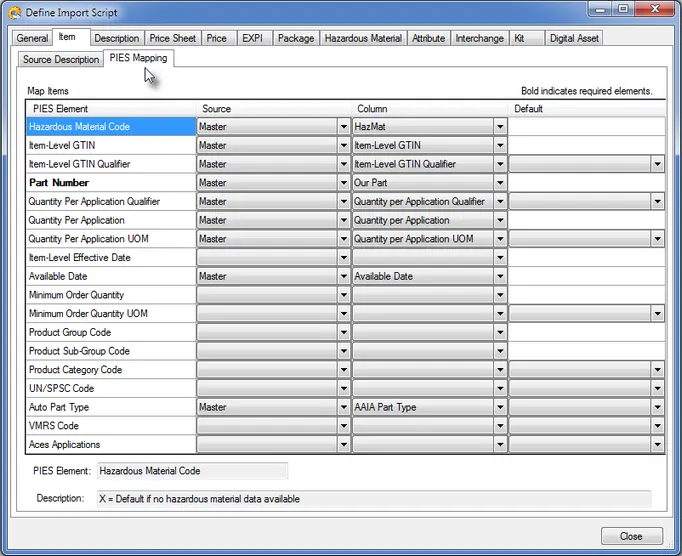
a. On the PIES Mapping sub-tab, fill in the drop downs as shown above. Make sure you remove the Default value on the Hazardous Material Code.
Add to “Acme” Import Script — Description / Source Description Tab
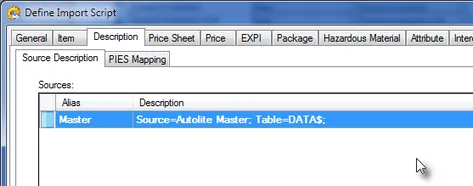
a. Go to the Description Tab and press the Add… button.
b. Complete the form as you did in Step 4 above for the Item tab.
c. Press OK. It should now look like this:
Fill In “Acme” Import Script — Description / PIES Mapping Tab
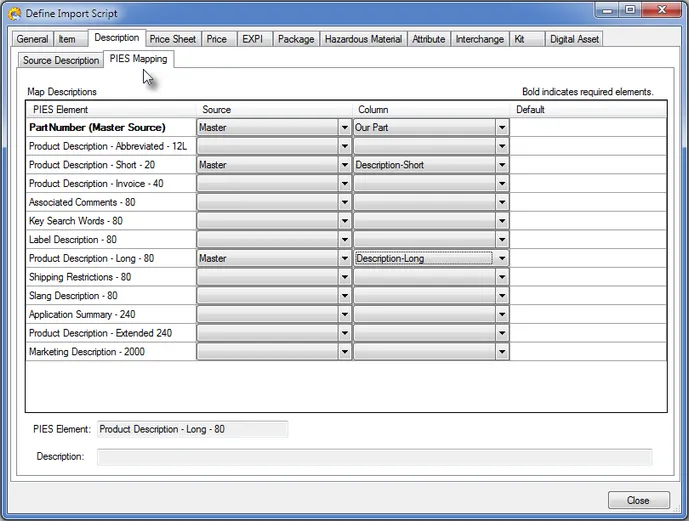
Fill In “Acme” Import Script — EXPI Tab
a. Set the Source Description sub-tab up as in the Description section above
b. Fill in the PIES Mapping as shown below
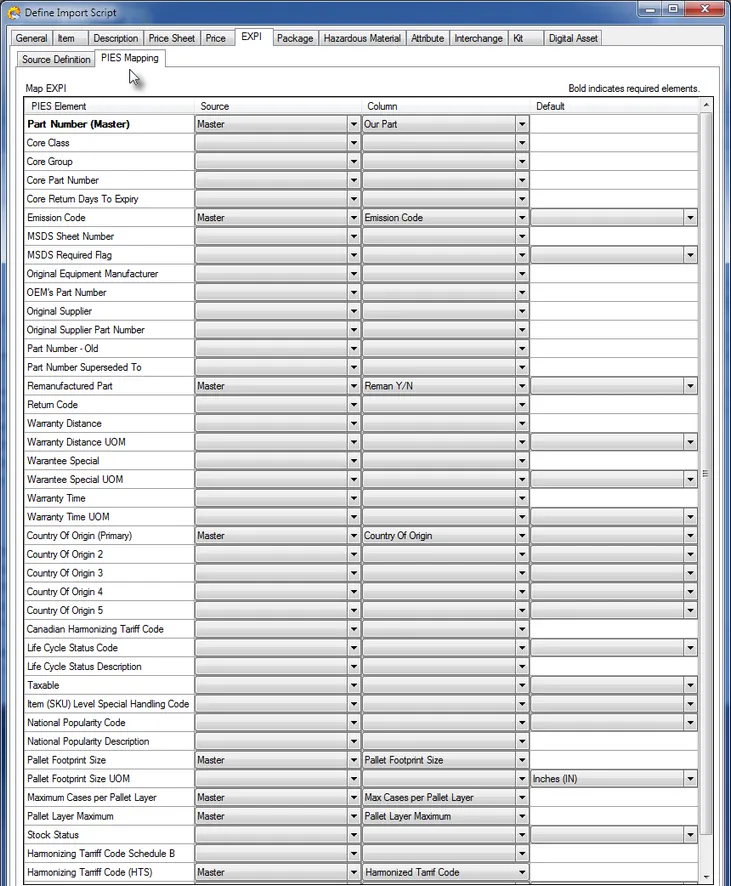
Update: Also include the Life Cycle Status Code and Life Cycle Status Description fields.
Create an “Internal” Price Sheet
PIESCentral must use a “Price Sheet” to group and output prices. You can either define these price sheets externally, as you would any other data source, or you can maintain them internally. For now, we will set up one internal price sheet for this purpose.
a. Close all screens leaving just the main application toolbar.
b. Select Maintain > Pricesheets… from the main menu.
c. Press the ellipses […] next to the Price Sheet Name dropdown.
d. Add a new Price Sheet Name called “ACME-AAP-US”, and press Close.
e. Select the newly added Price Sheet Name from the drop-down.
f. Press the Add… button to add a new price sheet (under that name) and fill it out like the following:
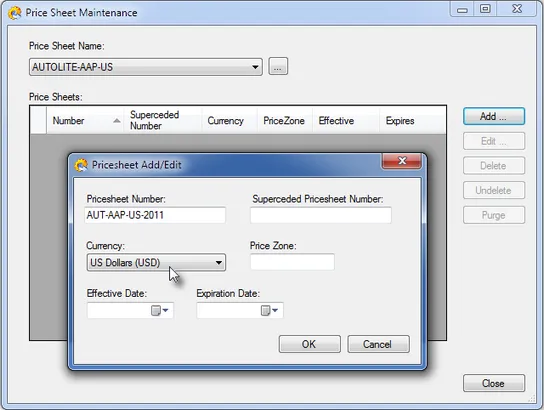
g. Press OK and you should now see one row for the new price sheet (AUT-AAP-US-2011) under the ACME-AAP-US price sheet name.
h. Close the Price Sheet Maintenance screen.
Create a “Trading Partner Brand” for Advance Auto
a. Select Maintain > Primary/Trading Partner Brands… to create a new trading partner brand
b. Press the Add… and fill in the form as shown below. Note: do not select an “AAIA Brand” here.
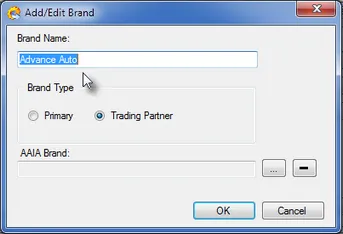
Create a New “Acme-AAP” Import Script
Now we will work on creating an Advance Auto Part specific import script. These scripts are called “Trading Partner” scripts and they contain fewer Tabs than a primary brand script.
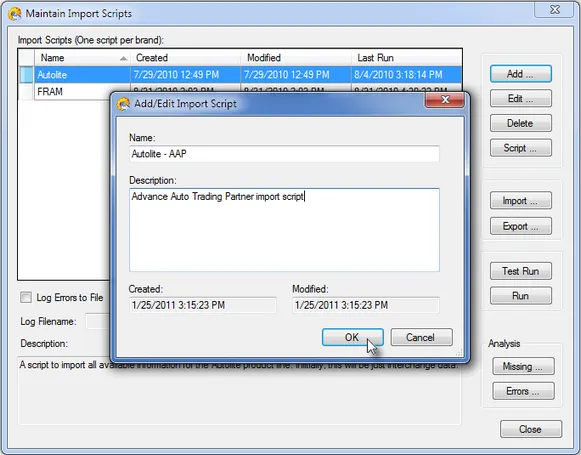
a. Select Import > Scripts to Maintain the Import Scripts
b. Press the Add… button to create a new import script and fill it in as shown below.
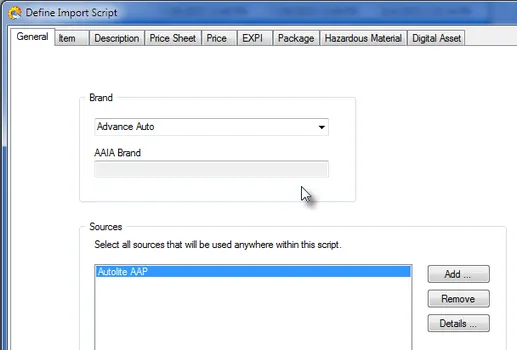
Fill In “Acme-AAP” Import Script — General Tab
a. Select the new “Advance Auto” brand from the Brand drop-down.
b. Press the Add… button in the Sources frame and select the “Acme AAP” data source.
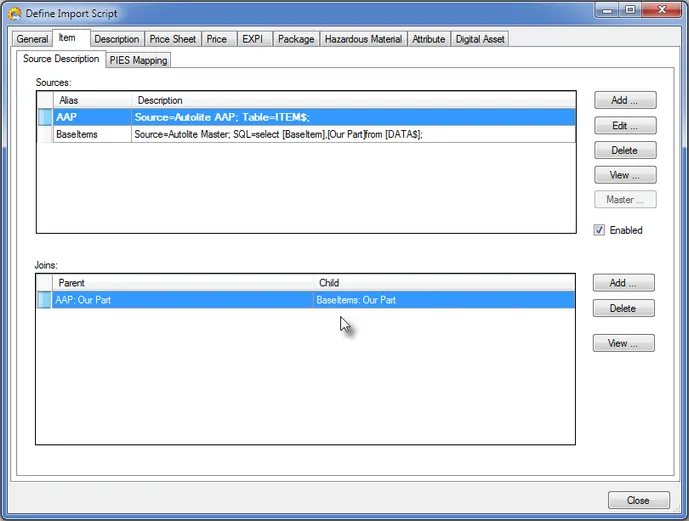
Change “Acme-AAP” Import Script — Item / Source Description Tab
a. Press the Add… button on the Source Description tab and fill out the form as below. (Add two sources named “AAP” and “BaseItems”, make AAP the master, use SQL for BaseItems, Add a Join as shown).
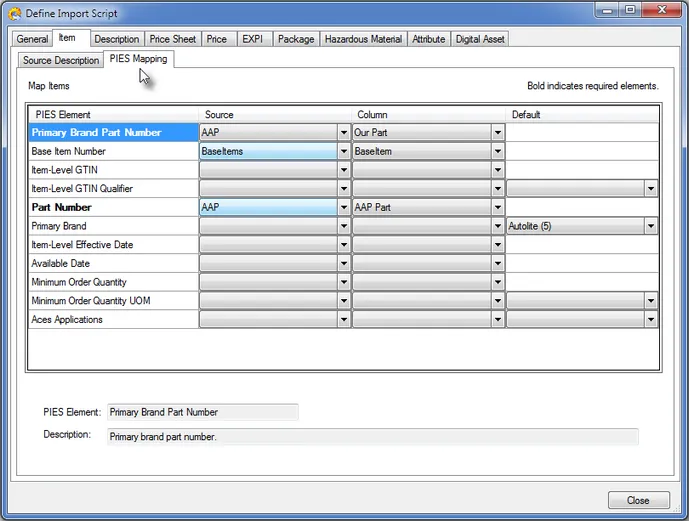
Fill In “Acme-AAP” Import Script — Item / PIES Mapping Tab
Fill In “Acme-AAP” Import Script — Price / Source Description Mapping Tab
Note that we are leaving the “Price Sheet” tab undefined since we are using an “internal” price sheet and don’t need to map to an external data source.
The Price tab will use a slightly different approach because we have two prices on a single row. We cannot use the “Table” type data source, we must create SQL as below (copy/paste):
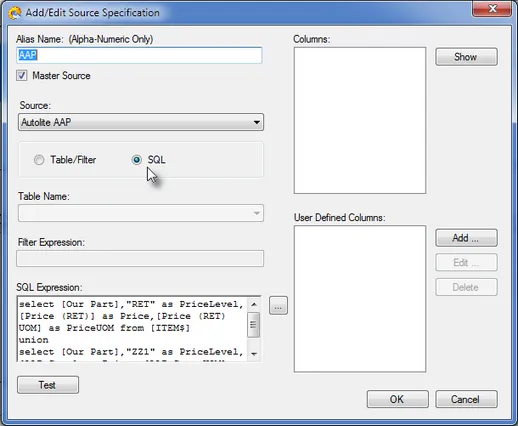
select [Our Part], "RET" as PriceLevel, [Price (RET)] as Price, [Price (RET) UOM] as PriceUOM
from [ITEM$]

union

select [Our Part], "ZZ1" as PriceLevel, [AAP Cost] as Price, [AAP Cost UOM] as PriceUOM
from [ITEM$]
This kind of “union” query is very useful when you have multiple data elements on a single row that need to be loaded separately, one per part number (usually with some kind of code identifying what the data represents).
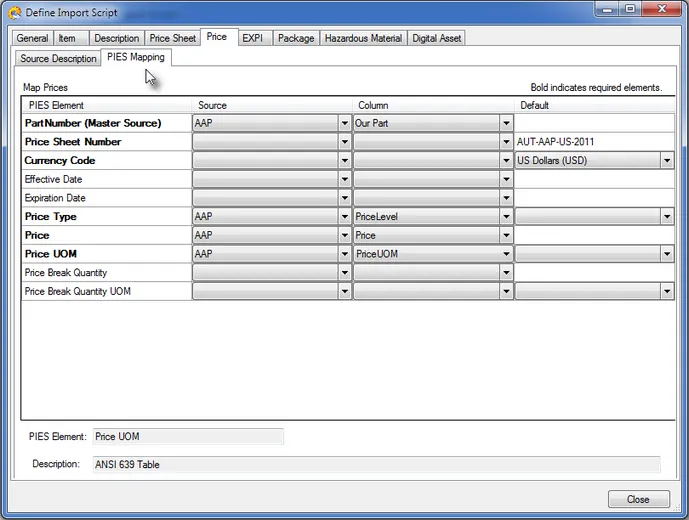
Fill In “Acme-AAP” Import Script — Price / PIES Mapping Tab
Note the Default Price Sheet Number is the one we added as an internal price sheet.
Fill In “Acme-AAP” Import Script — Package Tab
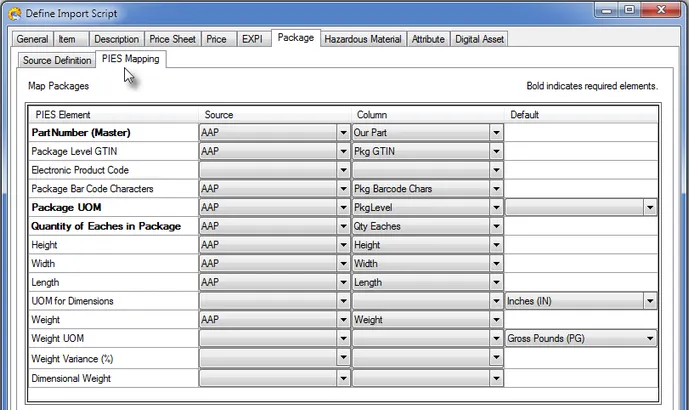
a. Press the Add… button on the Source Description tab and fill out the form as in the ITEM tab above except select the PKG$ table (worksheet).
b. Map the Package segment as below:
Fill In “Acme-AAP” Import Script — Attribute Tab
a. Press the Add… button on the Source Description tab and create a Master source using Acme AAP and the following SQL:
select [AAP Part] as Part, 'FreightClass' as AttributeField, 'AAP_UDA_4' as AttributeID,
[Freight Class] as AttributeValue
from [ITEM$] where [Freight Class] is not null

union

select [AAP Part] as Part, 'AAPSellPkgQtyUOM' as AttributeField, 'AAP_UDA_12' as AttributeID,
[AAP Selling Package Quantity UOM] as AttributeValue
from [ITEM$] where [AAP Selling Package QuantityUOM] is not null

union

select [AAP Part] as Part, 'AAPSellPkgQty' as AttributeField, 'AAP_UDA_22' as AttributeID,
[AAP Selling Package Quantity] as AttributeValue
from [ITEM$] where [AAP Selling Package Quantity] is not null

union

select [AAP Part] as Part, 'AAPPartType' as AttributeField, 'AAP_UDA_31' as AttributeID,
[AAP Part Type] as AttributeValue
from [ITEM$] where [AAP Part Type] is not null

union

select [AAP Part] as Part, 'AAPProdLineAbbr' as AttributeField, 'AAP_UDA_32' as AttributeID,
[AAP Product Line Abbr] as AttributeValue
from [ITEM$] where [AAP Product Line Abbr] is not null

union

select [AAP Part] as Part, 'AAPSKUNumber' as AttributeField, 'AAP_UDA_33' as AttributeID,
[AAP SKU Number] as AttributeValue
from [ITEM$] where [AAP SKU Number] is not null

union

select [AAP Part] as Part, 'ApplSpecific' as AttributeField, 'AAP_UDA_119' as AttributeID,
[Application Specific] as AttributeValue
from [ITEM$] where [Application Specific] is not null

union

select [AAP Part] as Part, 'CarLightTruck' as AttributeField, 'AAP_UDA_120' as AttributeID,
[Car/Light Truck] as AttributeValue
from [ITEM$] where [Car/Light Truck] is not null

union

select [AAP Part] as Part, 'MediumDuty' as AttributeField, 'AAP_UDA_121' as AttributeID,
[Medium Duty Truck] as AttributeValue
from [ITEM$] where [Medium Duty Truck] is not null

union

select [AAP Part] as Part, 'HeavyDuty' as AttributeField, 'AAP_UDA_122' as AttributeID,
[Heavy Duty Truck] as AttributeValue
from [ITEM$] where [Heavy Duty Truck] is not null

union

select [AAP Part] as Part, 'Agriculture' as AttributeField, 'AAP_UDA_123' as AttributeID,
[Agricultural Equipment] as AttributeValue
from [ITEM$] where [Agricultural Equipment] is not null

union

select [AAP Part] as Part, 'IndustrialOffHighway' as AttributeField,
'AAP_UDA_124' as AttributeID, [Industrial/Off-Highway Equipment] as AttributeValue
from [ITEM$] where [Industrial/Off-Highway Equipment] is not null

union

select [AAP Part] as Part, 'MotorcycleATV' as AttributeField, 'AAP_UDA_125' as AttributeID,
[Motorcycle /ATV] as AttributeValue
from [ITEM$] where [Motorcycle /ATV] is not null

union

select [AAP Part] as Part, 'Snowmobile' as AttributeField, 'AAP_UDA_126' as AttributeID,
[Snowmobile] as AttributeValue
from [ITEM$] where [Snowmobile] is not null

union

select [AAP Part] as Part, 'PersonalWatercraft' as AttributeField, 'AAP_UDA_127' as AttributeID,
[Personal Watercraft] as AttributeValue
from [ITEM$] where [Personal Watercraft] is not null

union

select [AAP Part] as Part, 'Marine' as AttributeField, 'AAP_UDA_128' as AttributeID,
[Marine] as AttributeValue
from [ITEM$] where [Marine] is not null

union

select [AAP Part] as Part, 'SmallEngine' as AttributeField, 'AAP_UDA_129' as AttributeID,
[Small Engine] as AttributeValue
from [ITEM$] where [Small Engine] is not null

union

select [AAP Part] as Part, 'HighPerformance' as AttributeField, 'AAP_UDA_130' as AttributeID,
[High Performance] as AttributeValue
from [ITEM$] where [High Performance] is not null

union

select [AAP Part] as Part, 'EngineSpecific' as AttributeField, 'AAP_UDA_131' as AttributeID,
[Engine Specific] as AttributeValue
from [ITEM$] where [Engine Specific] is not null

union

select [AAP Part] as Part, 'TransmissionSpecific' as AttributeField, 'AAP_UDA_132' as AttributeID,
[Transmission Specific] as AttributeValue
from [ITEM$] where [Transmission Specific] is not null

union

select [AAP Part] as Part, 'NonVehicleSpecific' as AttributeField, 'AAP_UDA_133' as AttributeID,
[Non-Vehicle Specific] as AttributeValue
from [ITEM$] where [Non-Vehicle Specific] is not null
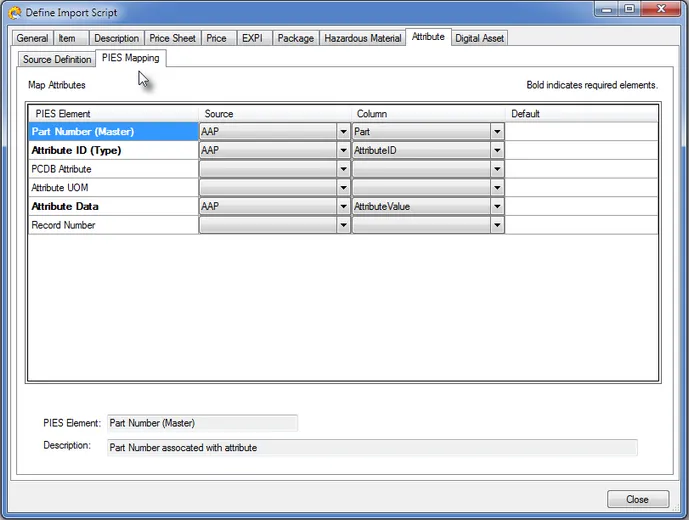
b. Map Attribute segment as below:
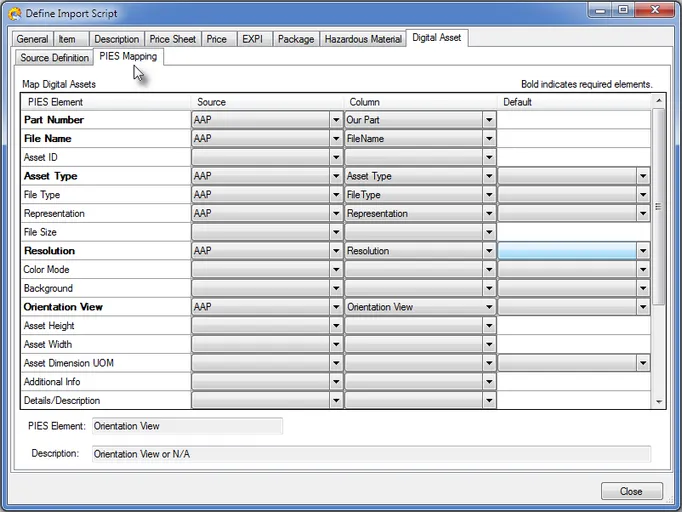
Fill In “Acme-AAP” Import Script — Digital Asset Tab
a. Press the Add… button on the Source Description tab and fill out the form as in the ITEM tab above except select the ASSETS$ table (worksheet).
b. Map the Digital Assets segment as below:
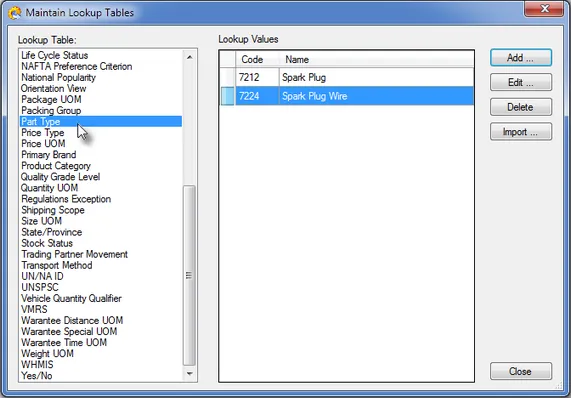
Add the two AAIA Part Types to the Lookup Table
From the main PIESCentral toolbar, select Maintain > Lookup Tables… and find the “Part Type” entry. Add the two part types as shown below:
Define a “Document” for Output
This section will discuss creating a new document for delivering a PIES file to Advance for ACME. While it is possible to generate one PIES file for all the ACME products for Advance, it is probably recommended that you split them by product line.
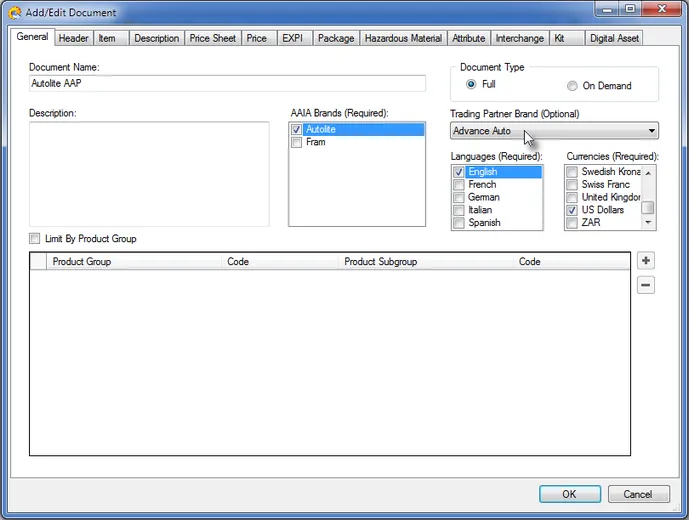
a. From the main PIESCentral toolbar, select Publish > Documents… to bring up the Maintain Documents screen
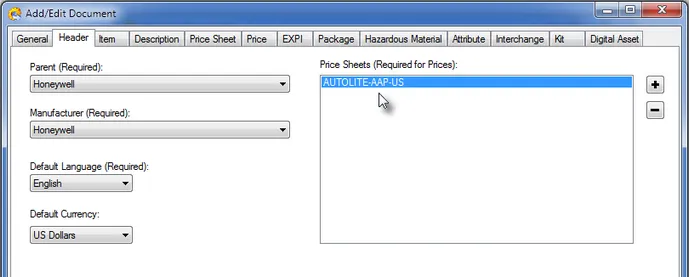
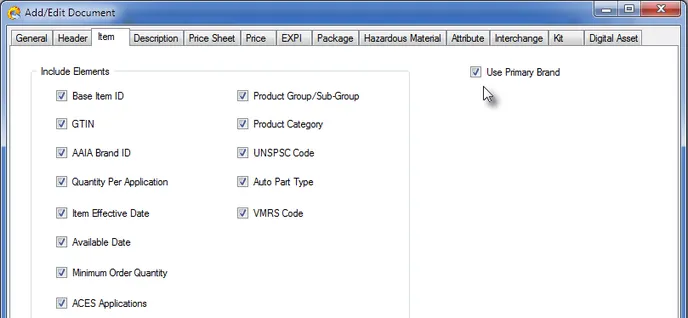
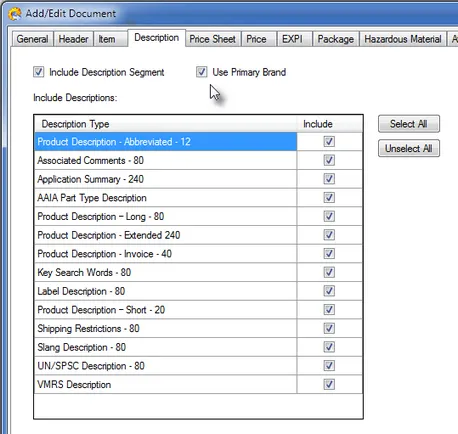
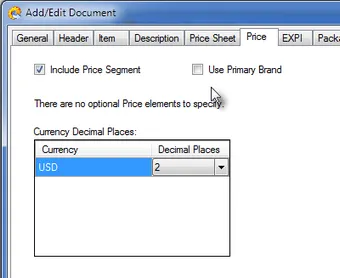
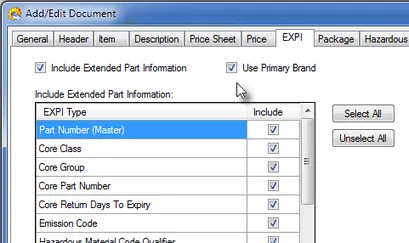
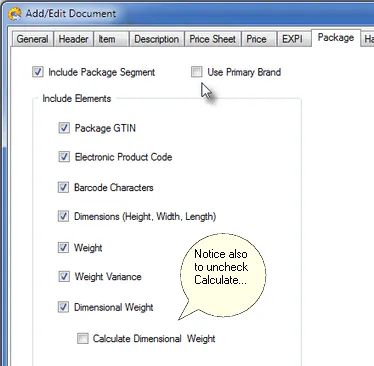
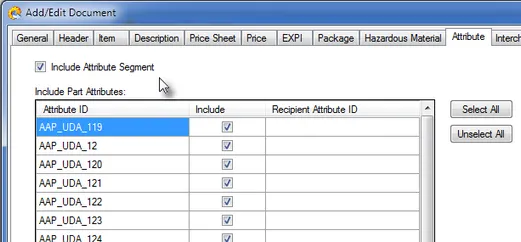
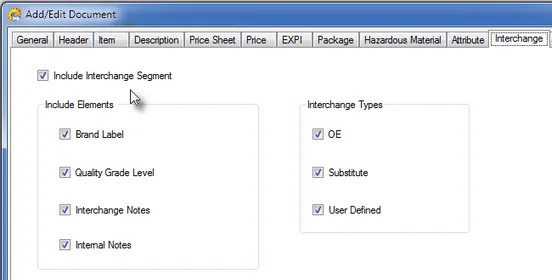
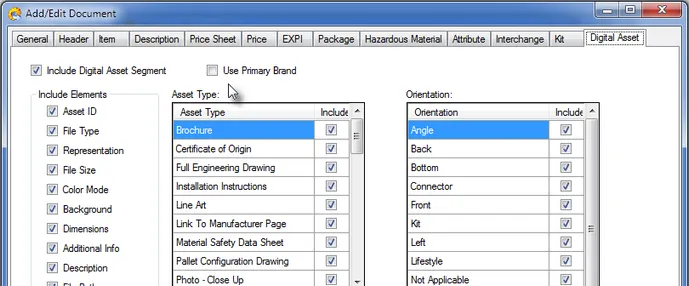
b. Press the Add… button and give the Document a name like “Acme AAP” and fill out as below:
Publishing
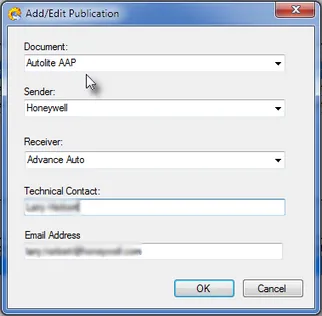
From the main PIESCentral toolbar, select Publish > Publications… and press the Show button to see any existing Publications. Press the Add button and fill in a new Publication for Advance Auto using the Document we just created.