Mapping Screens
The main job of PIESExpress is to “map” your source data to PIES terminology.
Each mapping screen looks similar. Each will have a section at the top with section title and two drop-downs to define the data to be mapped:

Here is an example of the Header mapping screen when it’s first displayed (before any maintenance has been performed).
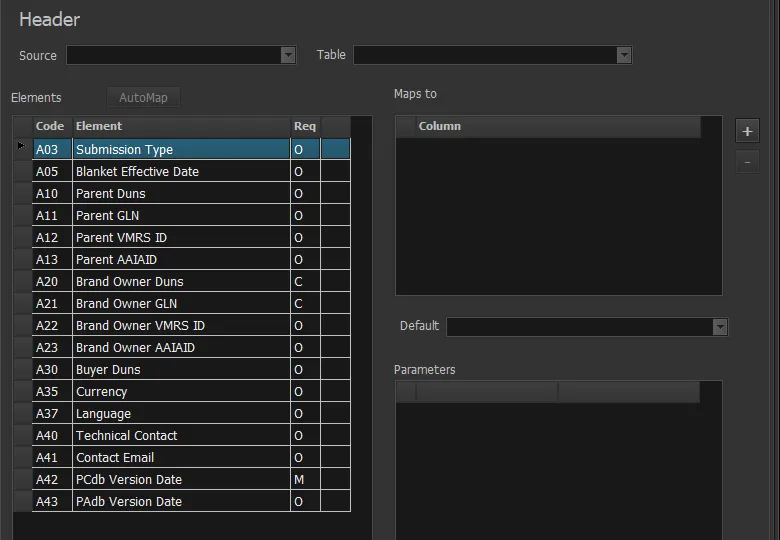
The Source drop-down is populated from defined Sources. The Table drop-down is populated from available source tables (or Excel sheets and named-ranges). Excel sheets will have a “$” suffix.
The Elements grid displays all PIES elements that could be mapped to the source columns (or provided with a “default” value).
This grid contains three columns with a header (and one without):
| Code | Matches the PIES specification Ref# |
| Element | The PIES element name |
| Req | Defines that element’s requirement setting |
Here are the possible values for the Req column:
| Req | Description |
|---|---|
| M | Mandatory (must be mapped) |
| O | Optional (can be mapped, but not required) |
| C | Conditionally required (if another field is not included) |
| K | Key field (can be mandatory or optional) |
Hover your cursor over a “C” type to show the other related field.
For example:
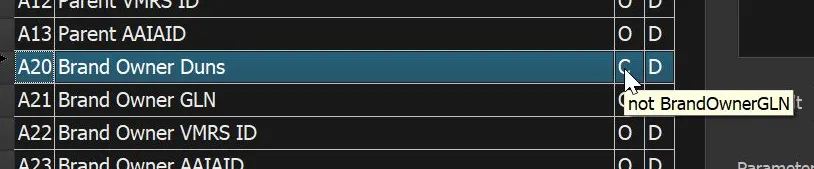
The final (right-most) column in the Elements grid (without a header) indicates whether or not the PIES element has been mapped (either to a source data column or with a default value).
A “D” indicates a standard data mapping. A “P” indicates a mapping that requires parameters (described further below).
Default Values
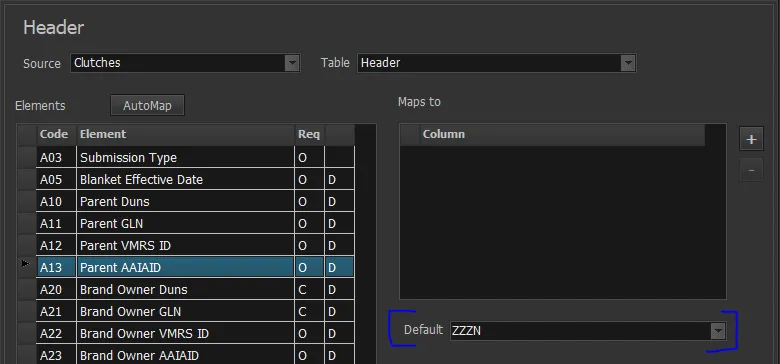
A value entered or selected in the Default combo-box will apply if there is no mapping defined for an Element, or if a mapping is defined, but the source column has “no data” as defined on the main project page:

Here is an example of a Default value being supplied for a Mandatory PIES element without mapping to a data source column. This means that A13 will always have the ZZZN brand code.
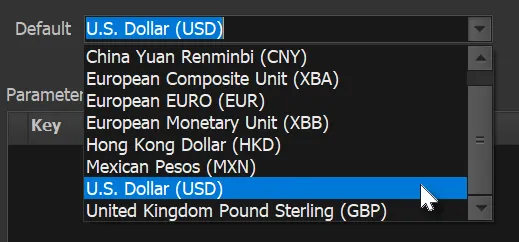
Some PIES Elements have a “list of values” defined which are then used to populate the Default drop-down, as shown here for A35 “Currency”:
AutoMap Button
Each mapping screen has an “AutoMap” button above the Elements grid. This is designed for the simple case where your source data columns match the PIES element names exactly. Pressing this button will create a “Maps To” column entry for columns that match.
Mapping Elements (D)
To map a column in the source table to an element in PIES, select the desired PIES element and then press the plus (+) button in the Maps to area.
Pressing the plus button creates a new blank row in the column list. Selecting the blank row loads a drop-down list of available columns from the selected Table for you to complete the mapping.
Typing in the column list starts a quick search within the list. For example, the following shows the drop-down after typing “it”:
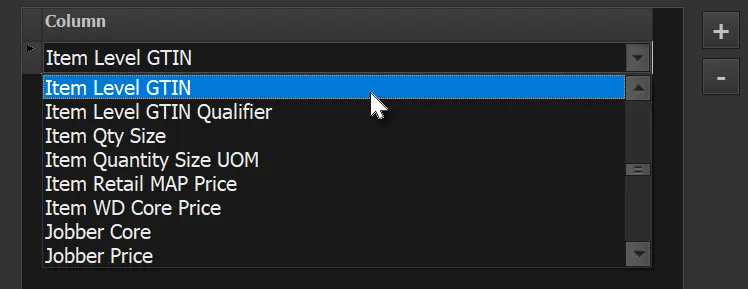
This search is not a “Filter” but simply positions you to the first column name that matches what you entered. (A pause in typing will reset the search. So “i” [pause] “t” will position at the first column starting with a “t”.)
Parameter-Based Map (P)
There are cases when a column in your source table needs more information to complete the map. For example, your data may include two Product Description columns, such as:
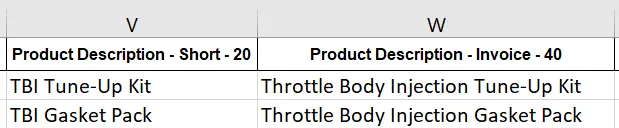
The “Descriptions” mapping screen looks like the following. Notice that the source data above does not include a “Description Code” (C05), and it is a required Key.
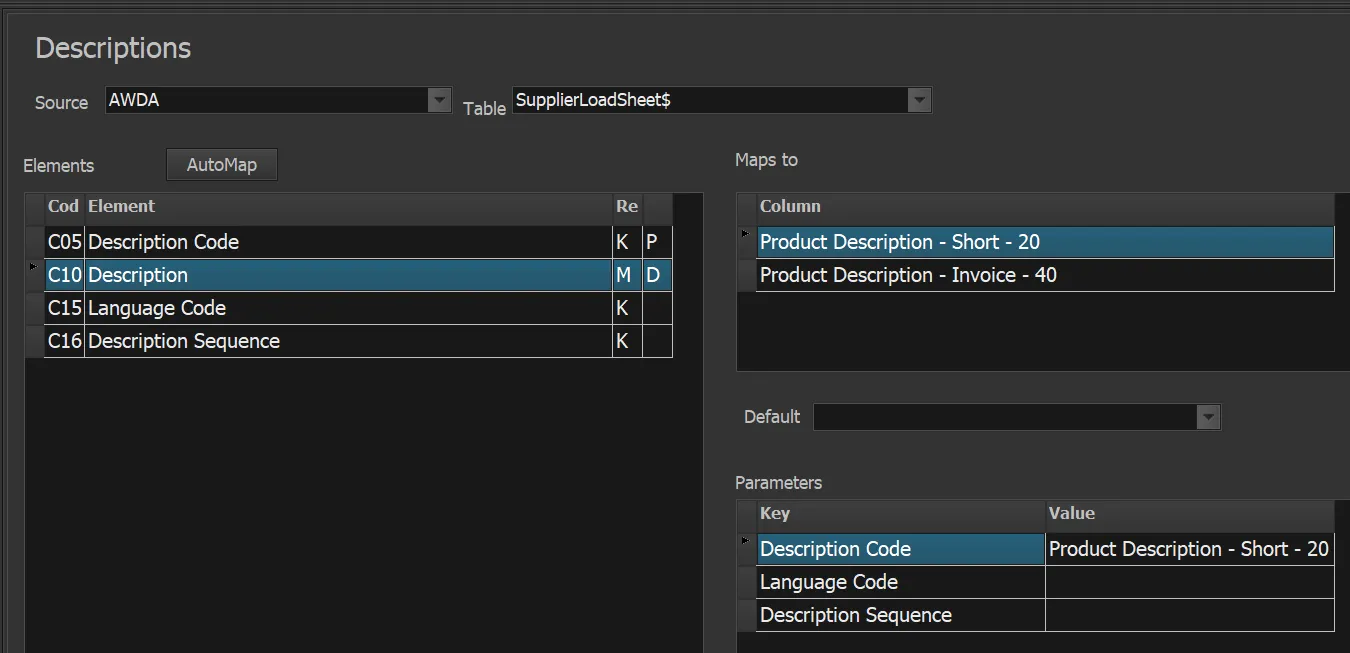
The way to handle this is to map each of the source description columns (“short” and “invoice”) to the Description (C10) element. You now have two columns in the Maps to list (as seen above). But we need more information to tell the system how to code these two columns’ values. This is accomplished using the Parameters grid.
We selected the first source Column (“Product Description - Short - 20” in this case) and then clicked in the Description Code Parameter Value. It showed all of the Description Codes as defined in PIES:
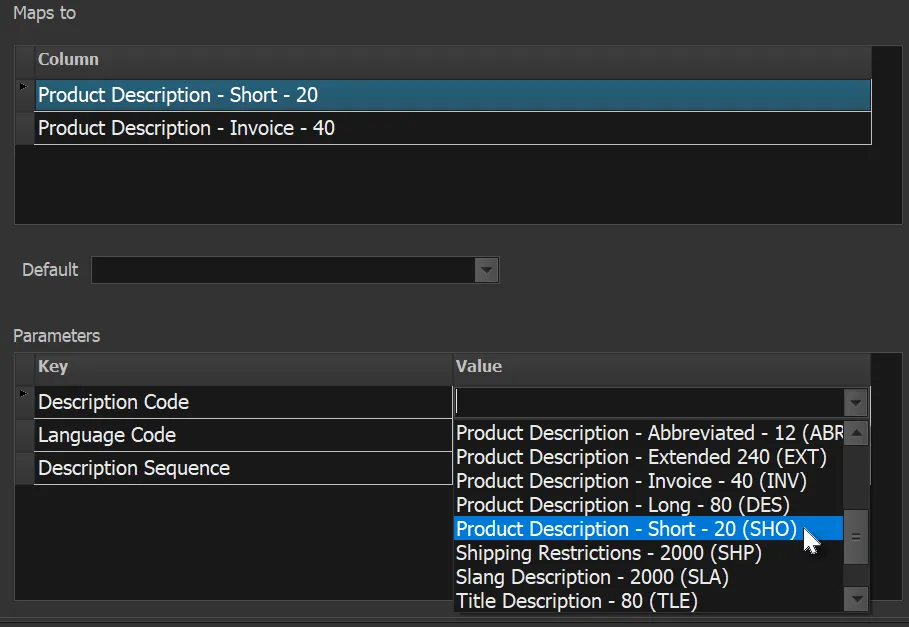
It was then a simple matter to match the code to the type of description that is being supplied. In this case (SHO).
Note that we did not map anything directly for the C05 Description Code Element. PIESExpress generates the proper PIES xml with the required Description Code automatically. That is why it shows that the value is supplied by the Parameters (as indicated by a “P”).
One way to remember that you probably need a parameter is if a key value (“K”) element is not included in your source data as a separate column. This often happens when you have de-normalized (i.e., “flattened”) data with repeating columns instead of normalized data with repeating rows. You often see this in wide Excel sheets where you have multiple prices or multiple packaging levels for one part number.