Import NAPA PartsPro Valid Tables
Once you have ProMapper installed and have the database attached to a SQL Server, you should be able to start ProMapper and use the Connection tab to enter the SQL Server Name, connection credentials (if necessary) and select a ProMapper database.
The next step is to load the most recent NAPA valid tables. This should be done before each mapping project (i.e. monthly).
NOTE: This download address has been replaced by a vendor portal. Please contact NAPA for access. The file downloads, however should be the same.
Download Tables from NAPA
https://catalogftp.genpt.com/napacataloghome/
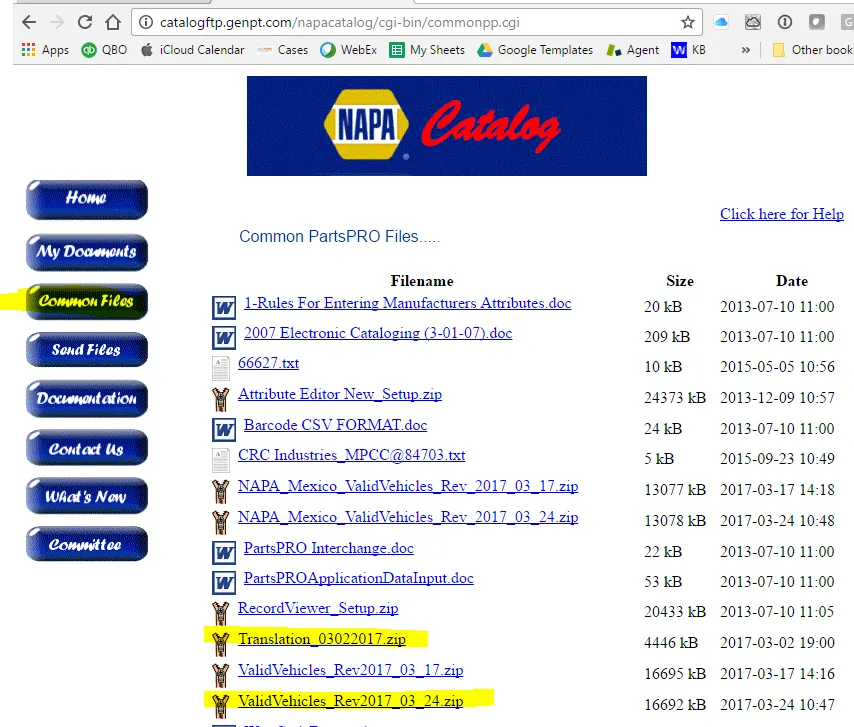
Unzip Three files to a local Folder
Unzip “ValidVehicles.mdb” from ValidVehicles_Rev2017_3_24.zip to a folder.
Unzip “pcc.txt” and “comments.txt” from “Translation_03022017.zip to a folder.
These files will also be used by ProViewer to decode the PartsPro files you generate for easy viewing.
**Import PartsPro Valid Tables into ProMapper. (**Note that it can take several hours to load the Vehicle t able, so you might want to run that overnight.) To do this, start ProMapper and use the three File > Import NAPA … options to load these three files in.
Once the process is completed, you should see the word “Loaded” next to the vehicle table date:

You are now ready to start your first mapping project.