View Applications (With Editing)
Once you’ve created a “Standalone ACES” document (which can only be done when first created or by converting a mapped document), you can maintain applications in that document in two ways. Here is the first way (using an open stand-alone document).
Open the document. Then use View > View Applications.
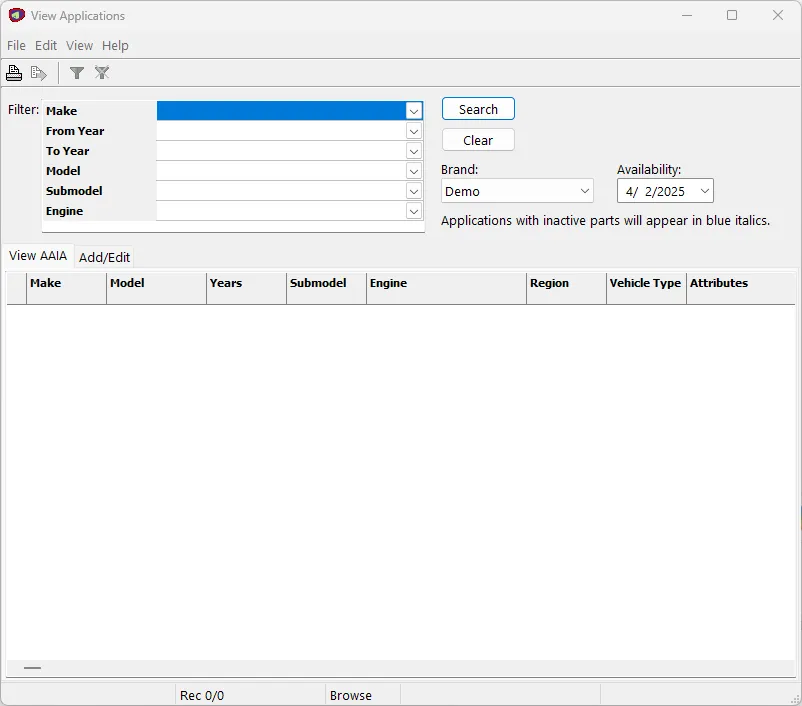
This screen is used for viewing current ACES applications, whether created through mapping, importing an ACES xml or manually entered.
The way to use this screen is to press Search to display all of the applications from this document that match the filter (which can be empty meaning all applications).
Once the grid is loaded, you can double-click on a row to edit that row (or click the Add/Edit tab).
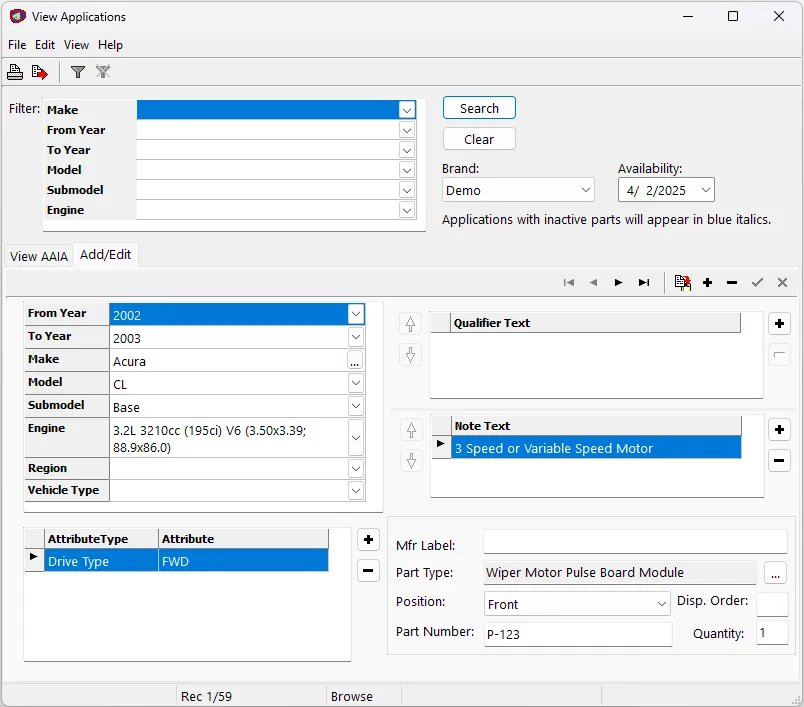
Most of this screen is self-explanatory. Only valid items are presented in the dropdown lists. Attributes are added using the standard attribute tree (with the ability to select from “Remembered”, recent entries):
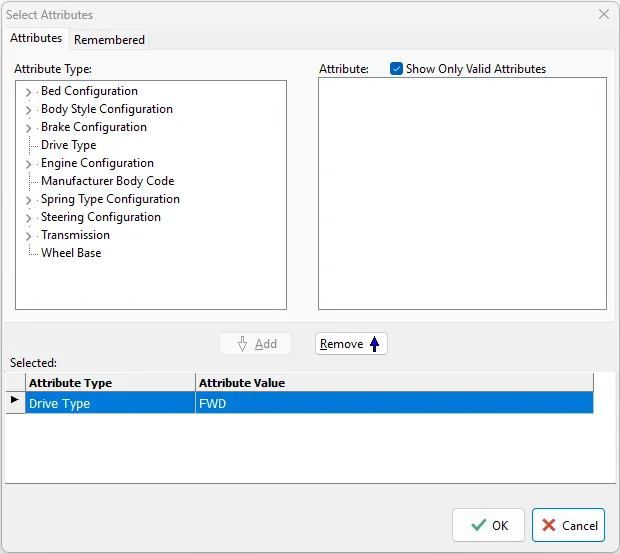
Here, FWD was already on the application and so showed in the “Selected” grid. You can add to or remove from this grid with the associated buttons. To Add, you must first locate the attribute in the Tree (or from the Remembered tab).
Once you have made your edits, press the Post (check mark) button. If you have created an invalid combination, it will indicate that on a separate screen.
The button to the left of the plus-sign (add application) will create a copy of the current application giving you a starting point (which is often the case) so you can change just what is needed (e.g. fitment and part number).