Connecting to the Database
After completing registration, the next step is to sign in to the database. The AceMapper Login screen has two tabs, “Login” and “Connection”. How you log in depends on the installation configuration.
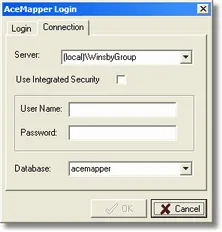
Switch to the Connection tab:
Standalone Installation
-
For a default SQL Express installation, the server name should be:
[computer name]\SQLEXPRESSFor example, if your computer name is
MARS, the server name would beMARS\SQLEXPRESS. (Note, you can also use the special computer name “(local)” or even the shorthand “.”, allowing either(local)\SQLEXPRESS, or.\sqlexpress).Assuming you installed the AceMapper database after installing the AceMapper application, the server name should be filled in for you.
-
Check “Use Integrated Security”. With this option, it is not necessary to go to the login screen and enter a user name and password. Just press OK and the login should be completed.
The login screen will not appear again unless for some reason the application is unable to connect to the database (This could happen if the SQL Express service is shut down, for example).
-
For a default installation, the Database name is usually
AceMapper. This should be filled in for you, but you can also select the database if necessary.
Client/Server (Database Server)
-
Contact the database administrator to obtain the server name, database name and login instructions.
-
Enter the Server and Database names in their respective boxes on the Connection tab.
-
If the database administrator advises you to use integrated security, place a check in the “Use Integrated Security” checkbox. Click OK to complete the login. A user name and password are unnecessary.
The AceMapper login screen will not appear again unless for some reason the application is unable to connect to the database.
-
If the database administrator supplies a user name and password, do not check the “Use Integrated Security” checkbox. Go to the Login tab and enter the user name and password. Click OK to complete the login. The Login screen will appear each time you start AceMapper.
Client/Server (Workstation SQL Express)
-
Assuming a default installation, the Server will be
[computer-name]\SQLEXPRESS. -
Assuming a default installation, the Database will be AceMapper.
-
If the database server and client computer are in a Windows server domain, click the “Use Integrated Security”. Then click OK to complete the login. The AceMapper login screen will not appear again unless for some reason the application is unable to connect to the database.
-
If the database server and the client computer are in a Windows workgroup and not in a domain, Integrated Security can only be used for a client AceMapper application on the database server computer. From other computers it will be necessary to supply a user name and password.
The SQL Express installation requires an administrator password. It is possible, though not recommended, to log in to AceMapper with the user name of sa and the administrator password.
A better approach is to set up user names and passwords on the database server for each user. Consult Microsoft SQL Server documentation for instructions on setting up users.
Troubleshooting
If you are unable to connect to the database, see this article for troubleshooting tips.