How do I register the program?
There are two kinds of registrations used by AceMapper: (1) Machine specific registration and (2) Part Type registration. Once registered, you are ready to connect to the database. This section explains these processes
Registering your PC
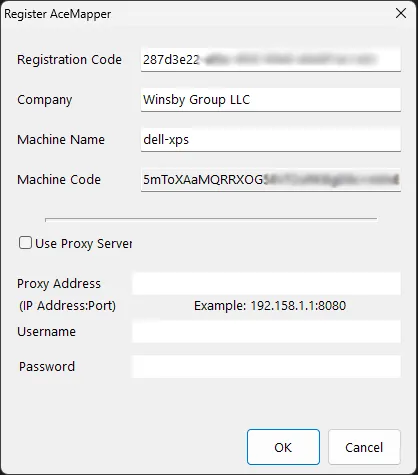
The first time you run AceMapper on a particular machine, the following screen will be displayed. Important Note: this process must be run from each client machine you want to register.
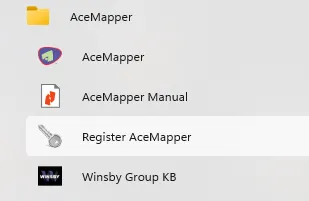
If the registration screen is not displayed when you start AceMapper, you can start it manually. Search for “Register AceMapper” from the Windows Start menu.
A registration code should have been sent in your welcome email. This one code should be used for any registrations of AceMapper within your company.
Enter your company name and a unique machine name for this registration.
If you use a proxy server for access to the Internet, check the “Use Proxy Server” box and enter the required information. You may need to contact IT for this information.
Offline Registration
If the machine you are registering does not have access to the Internet, or you’re having trouble reaching our registration server, you can perform an “offline” registration.
To do this, copy/paste the “Machine Code” from the registration screen into an email and send it to us. We will prepare a registration file with instructions where to place this file on your machine.

The process to copy the Machine Code is:
- Click in the Machine Code field on the registration screen.
- Right-click and select “Select All” from the context menu.
- Right-click and select “Copy” from the context menu.
- Paste the copied Machine Code into an email to us (optionally using the “Request Help” button above).
Completing Offline Registration
Once you receive the registration file from us, unzip AceMapperReg.ini and save it to your machine at this location.
C:\ProgramData\Winsby Group LLC\AceMapper
Do not run “Register AceMapper”. There is no need to “register” because creating a valid AceMapperReg.ini in that location is exactly what the registration process does.
Registering Part Types (This may not be necessary, depending on your licensing)
Licensing for AceMapper is by AutoCare Part Type. This means you must request and install a key for the Part Types contained in the applications you want to publish. A screen is provided to manage this registration process.
From the main menu, select Administration | Register Part Types… to display the following screen.
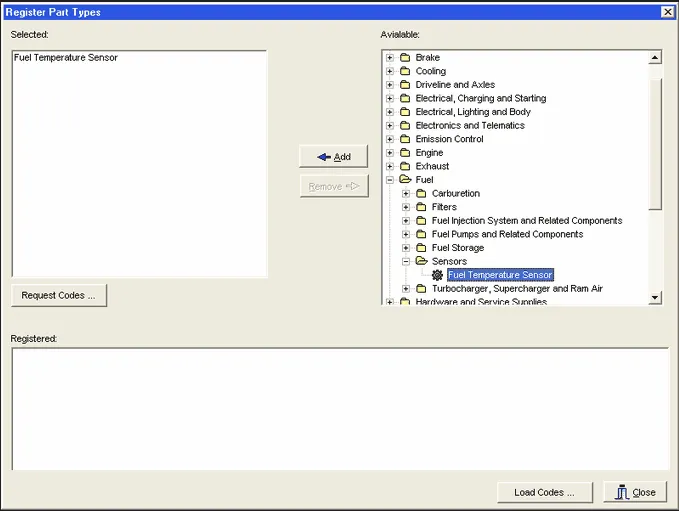
To use the Register Part Types Screen:
For each Part Type you want to register, repeat these steps:
- Locate and Select the desired Part Type in the Available List by navigating through the tree and highlighting the Part Type.
- Press the Add Button (or double click on the Part Type) to add the Part Type to the Selected list.
After you have added all of the Part Types you want to register at this time, Press the Request Codes… button to display the Request Registration Screen.