Mapping Makes
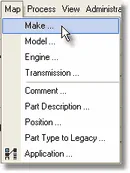
When working with a Structured file, you must translate the information found in the Make column. From the main menu, select Map | Makes as shown below.
When the Map Makes screen is loading, there will be a pause while the program searches the Make column (defined within the current document) and creates a list of unique values found in that column. These makes are loaded into a grid on the left and a count of the total number of unique makes that need to be translated is displayed in the status bar. Your job is to provide a translation or “map” for each unique make found in the file.
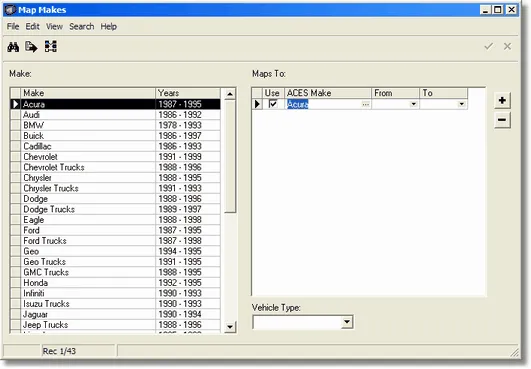
To use the Map Makes screen
-
Select Edit | Create Exact Maps to automatically map any makes that match exactly.
-
Select a row in the Make grid. Existing maps (if any) for the selected make will show up in the Maps To grid.
-
Enable an existing map by checking the Use column.
-
Press the plus sign to add a new empty mapping row if needed. Press the Ellipsis button to select a Make from the list of valid makes. Fill in the year range drop-downs only if you want to limit the years.
-
Press the minus sign to remove a selected Maps To row if desired.
-
Use the Vehicle Type drop-down if your makes are separated by Car, Truck or Van.
Note: Setting a vehicle type does not affect the creation of applications. It only helps to create the Model and Engine maps by limiting selections.
-
Press the check mark to post the change or the X to cancel any changes made to the current map.
When selecting a make, the following screen is displayed.
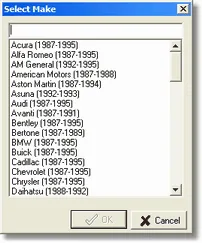
To quickly locate a make, begin entering its name in the text box above the list of makes. Each letter you enter will change the location in the list. When the one you want is selected, press the OK button. Alternatively, you can double-click on the desired make name.
View only unmapped makes
Use the View menu to show only the makes that are not mapped or to show all makes. This filter is also applied when using the Export feature.
Delete application maps
Since there is no direct link between a make map and any ACES applications created using that information, if you change a make map the underlying ACES applications will not change automatically. What you need to do instead is remove any existing ACES applications and recreate them on the Map Applications screen. This is done using the Edit | Delete Application Maps feature. Simply highlight the desired make and select this menu item (or right-click and use the shortcut menu).
Note: Mapping Makes is only available when working with Structured files.