Mapping Models
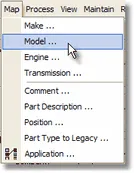
Mapping Models is only available when working with Structured files. From the main menu, select Map | Model as shown below.
When the Map Models screen is loading, there will be a pause while the program searches the Model column (if one was defined within the current document) and creates a list of unique values found in that column. These models are loaded into a grid on the left and a count of the total number of unique models that need to be translated is displayed in the status bar. Your job is to provide a translation or “map” for each unique model found in the file.
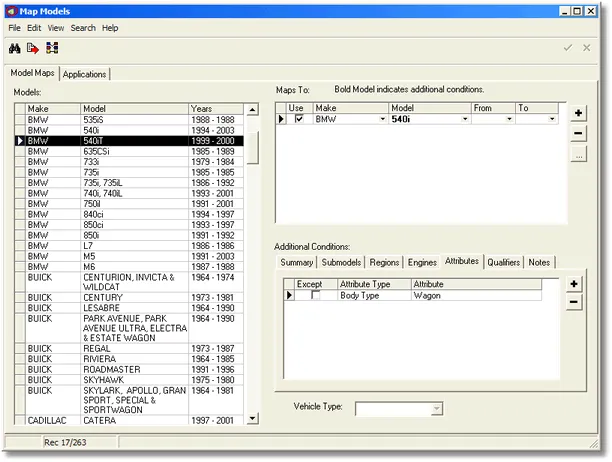
To use the Map Models screen
- Select Edit | Create Exact Maps to automatically map any models that match exactly.
- Select a row in the Models grid. Existing maps (if any) for the selected model will show up in the Maps To grid.
- Enable an existing map (defined in another document) by checking the Use column.
- Press the plus sign to add a new empty mapping row if needed. The Make drop-down should fill automatically unless you have more than one make mapped, in which case you must select the one you want. The Model drop-down is optional, but in most cases you will select the desired model. (Create a separate row for each additional model required.) Fill in the year range drop-downs only if you want to limit the years.
- If the model text you are mapping contains extra information not covered entirely by the selected model, you must include Additional Conditions as necessary. Note that each Maps To row has its own set of additional conditions and will be bolded if any conditions are added.
- The Vehicle Type drop-down can only be selected if the model is left blank. This would be used to map “All Trucks”, for example.
- Press the minus sign to remove a selected Maps To row if desired.
- Press the check mark to post the change or the X to cancel any changes made to the current map.
Multi-Select Model Mapping dialog
Double-clicking on a model row, or pressing the ellipsis button (...), will display the Select Models dialog screen.
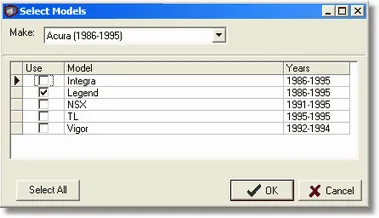
The Use check box represents the rows included in the main Maps To grid. Select all models you want included and press the OK button (or Cancel to return without changes to the selected models).
Note: Mapping Models is only available when working with Structured files.