Customer (“Recipient”) Specific Output
There are two ways to create customer-specific output.
-
Set up “Brands” which allow you to import a Part Number “interchange” between your “primary brand” and a trading-partner brand. This lets you both limit the file to the part numbers you sell to that customer, and also change the part number to use their numbering system (if required). See brand publishing.
-
Set up “Recipients” to limit the output by part type and (optionally) change Mfr Labels to include customer-specific terminology.
To use the Recipient option, you must first use the “Publish Applications” screen to “Publish” the desired brand to use for a recipient. You can then use “Recipient Maintenance” to add documents you want them to “Subscribe” to and add an “Export” definition.
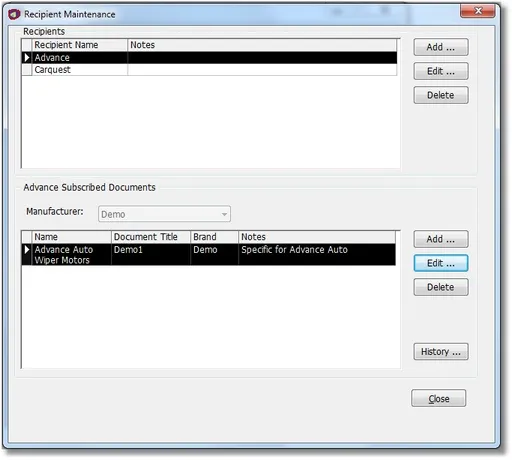
Press the “Add…” button under the “Subscribed Documents” to create a “Subscription” for the chosen Recipient.
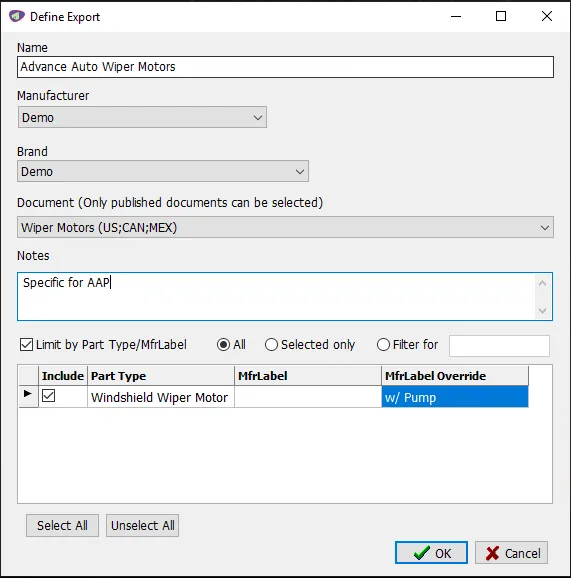
The “Define Export” screen is used to set up and maintain a customer-specific output. This screen allows you to limit which Part Types to include and optionally to change the MfrLabel.
Finally, on the Export screen, select the Export Definition defined earlier.
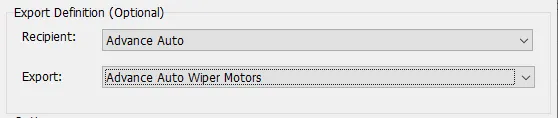
This will limit the output to only the Part Types defined in the Export Definition, and will change the MfrLabel to the value defined in the Export Definition.