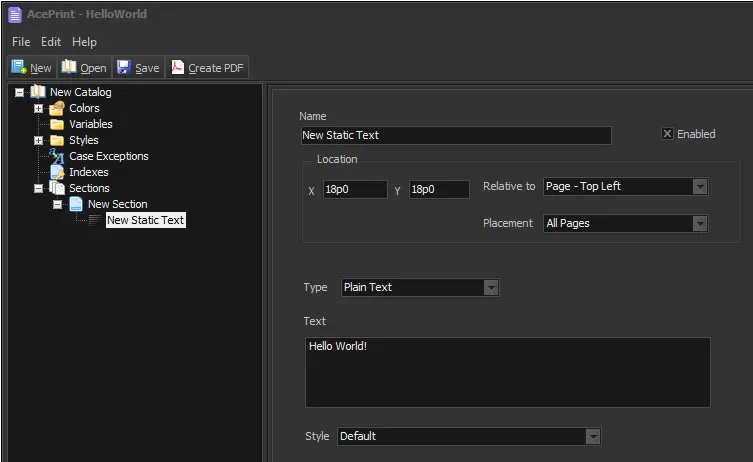
Hello World!
Since you’re probably anxious to see some output, let’s start with the famous “Hello World!” example. This will show the minimal setup required to generate a catalog page with “static text” from AcePrint.
-
File > New. Notice that an entry was added to the left pane called “New Catalog”. The right pane shows information about the catalog. Here you can change the name, register the catalog and set pdf-specific information. Leave all of this alone for now. Notice “Styles”, “Indexes” and “Sections” under the catalog name. These are containers that hold additional layout elements and settings used to create your catalog. (Styles define a font, font size, font color, font effect and alignment. The Styles group contains all of the styles used in the catalog. Every printed element must use a style that is defined here. A “Default” style has already been added for you.)
-
Click on “Sections” and Right-Click to Add a Section. This will create a section called “New Section”. (Be sure to select the “Add Section” context menu after the right-click). Every catalog will have at least one “Section” defined.
-
Right-Click “New Section” and select Add > Text. This will create a new “Text” element called “New Static Text”. It is called “Static” text because you will be providing the data directly in AcePrint and not from a separate data file, so it will not change.
-
Enter 216 for X, and 216 for Y. Note that when you tabbed out of each field, the system changed 216 to 18p0 (which means 18 picas and 0 points). This is because your “Default” measurement was set to points, so it assumed you entered the information in points and 216 points is 18 picas. You could have also entered “18p” or “3in” to get the same result. You have now defined the text to be positioned 3” down and 3” right from the top-left of the physical page.
-
Enter “Hello World!” in the “Text” field. This is what will appear on the page at the pre-defined location.
-
Select “Default” from the “Style” Dropdown. This tells the program to use the “Default” style to set the provided text.
Press the “Create PDF” button and Enter “HelloWorld” in the Save Dialog. This will create the “HelloWorld.pdf” file and, if you have a pdf reader registered with Windows, will display it on the screen.