Page Dimensions (Picas & Points)
Before designing a printed catalog, it’s important to know what “Trim Size” the press requires. Some web offset presses, for example, use 8-3/8” x 10-7/8” instead of 8.5 x 11.
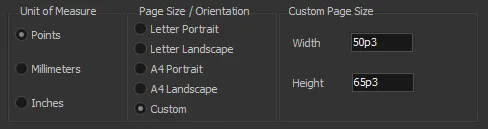
Page Size is defined at the catalog level and applies to the entire book. If you wanted to work in Points, and set a custom page size for that type of press, you would enter the following:
-
File > New. To create a new catalog.
-
Press “Custom” Page Size / Orientation and enter 50p3 and 65p3:
Additionally, many stores organize their supplier catalogs in racks requiring drilled holes. So it is important to allow enough “inside margin” for these holes. Margins are set at the section level, so let’s add one.
-
Click on “Sections” and Right-Click to Add a Section. This will create an empty section.
-
Change Margin settings like the following (1p6, 6p6, 1p6, 2p9):
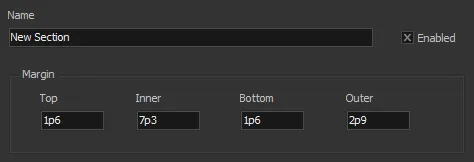
Since our page width is 50p3, this creates a usable space for the “body” of 41p0 (a very common amount for catalogs that require drilled holes).
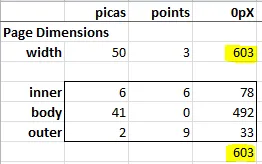
TIP: When working with picas & points, math is easier if you first change everything to points. (Remember that 1 pica = 12 points). So, (50*12)+3 = 603:
See Rulers.