Evaluating our Software
We offer a “try-before-you-buy” evaluation period for all of our software.
Some of our tools require very little configuration and can be easily installed under your local Windows user account without administration rights or additional setup.
Our enterprise software products, however, might require help from your IT department and access to a SQL Server. We understand this can take time and valuable corporate resources. For this reason, we also offer the ability for you to evaluate our software using just an internet browser (like Chrome, Edge, Blaze or Firefox).
We will send you a URL and login credentials. When you click on the URL, you will see a page like the following:
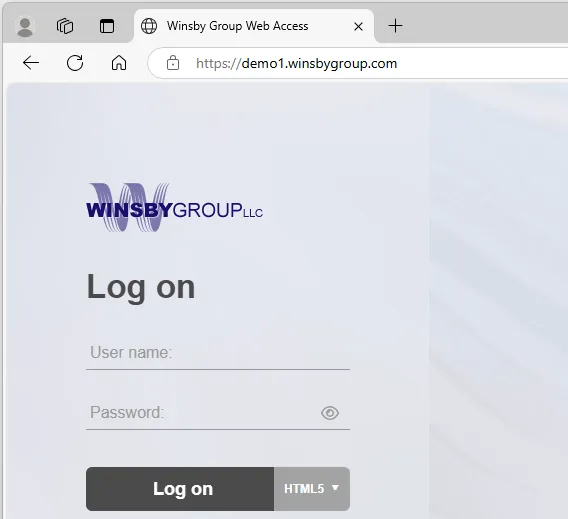
Enter your supplied user credentials and press “Log on” (leaving the option for HTML5).
You should then see a blue workspace with a tool bar on the left that looks similar to this (with just the applications available that you are evaluating and possibly Microsoft Office):
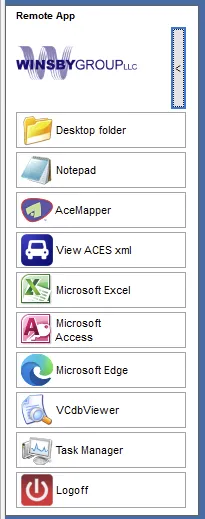
The “Desktop folder” is similar to Windows Explorer and allows you to drag and drop files between your local computer and the evaluation server. Note that you cannot use the clipboard to perform file copies as you might with Explorer, however.
If you want to take a break and pick up exactly where you left off, do not use the “Logoff” feature. Simply close your browser. When you login again, you should see the same screen you had before (because it is still running on our server). You should not expect this behavior overnight, however (although it could still be running).
Creating a Web App
If you are using a chromium-based browser (such as Chrome, Edge or Blaze), you can create a stand-alone webapp to make launching easier.
More importantly, it will keep the browser window from hijacking the Ctrl-A and Ctrl-N keys (since these are used by some of our products as short-cut keys).
To create a web app, navigate to the demo web page (e.g. https://demo1.winsbygroup.com) and press the three-square plus icon (located at the far right of the address bar) as shown below.
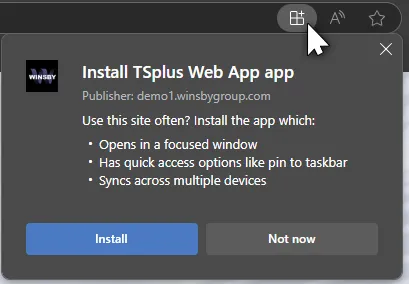
Press “Install” and you will be prompted to create a desktop icon (with the Winsby logo). Use this shortcut to access the evaluation software inside a dedicated window without the standard browser interface elements or keyboard shortcuts.
✨See TSplus Web App for more information and special instructions for Firefox.
Knowledge Base
We provide an on-line resource for user guides and tutorials.
IMPORTANT
No Backup.❗ We do not backup your data during an evaluation. This means you should not perform production work while evaluating our software. There should be no expectation that your data will remain from one day to the next.
Keyboard Shortcuts. Unless you have created a Web App as explained above, you are running our applications in a standard browser and so any keyboard shortcuts you provide will first be captured by the browser. This can conflict with some of the shortcut keys we use in our software.
For example, pressing Ctrl-N will create a New Browser in Edge and will not mark a comment as a Note as you might expect in AceMapper. You will need to use the pop-up menu options instead (or create a Web App).