Source Format Types
Each source column must have a “Format” which defines how to interpret the information found there.
| Format | Type | Special Handling |
|---|---|---|
text | alpha-numeric plus any special characters | spaces trimmed from front and back |
number | no decimal point | validate as 64bit integer |
decimal | with decimal point | extraneous decimal places removed |
date | yyyy-mm-dd string (or Excel native date) | validate between 1/1/1900 and 1/1/2200 |
price | 0.0000 | string will always be 4 decimal places |
gtin14 | number | front zero filled to 14 characters, check-digit validated |
part | alpha-numeric plus any special characters | used to identify part number column |
Initial Data Conversion
Each data element (i.e. source column) undergoes two separate data conversion steps, once when reading and a second time when writing.
All data is read from Excel as a string regardless of how they were entered. The following source data, for example, shows three types of data (text, dates and numbers):
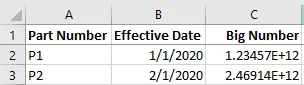
The “Effective Date” column was entered (and interpreted) as a native Excel “Date” formatted number. So, when the program reads cell B2, for example, it sees “43831” (which represents the number of days since 12/31/1899).
The “Big Number” column was entered as a “General” formatted number. As seen here, General format displays large numbers in scientific notation. But cell C2, for example, is read as “1234567890123”.
ℹ️It is important to note that both of these numbers are now stored internally by the program as strings (with validations/conversions as described in the above table).
Excel Calculated Values
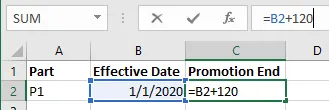
The program also supports calculated values as shown above (here showing a date calculation, but any formula will work).
Conditional Expression Variables
Any template variable found in a condition (i.e. RequiredIf and Filter) uses the “typed” (native) value, not the “string”
value. If a native value is missing (or when a conversion error occurs) the variable contains “nil”.