Running the Samples
Samples Folder
The installer provides a Samples folder in the loadsheets directory which contains a few example projects
for you to explore.
No User interface
Unlike other Windows applications you may be familiar with, loadsheets does not have a user interface. This means that everything is run from the command line (either cmd or powershell). But, in order to make it easier to run, you can create “batch” files which will run the project and present the results in notepad.
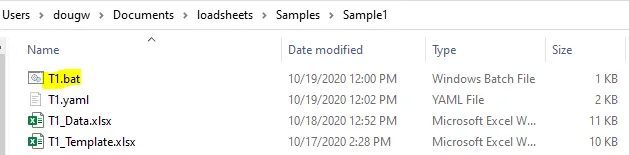
Here is a listing of the Sample1 project folder:
For example, here is the contents of T1.bat:
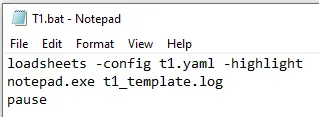
The first line is the command that runs the loadsheets program. Note that we’re telling it which configuration file to use, and instructing it to “highlight” any cells in the output Excel file that have problems.
The second line uses notepad to display the results of the run to the screen. This “log file”
always uses the name of the template file as its base name (with a .log extension).
The “pause” simply keeps the command window from closing until you press enter.
💡Note: It is usually easier to copy an existing project and make changes than to start from scratch.