Language Translations
The primary language in PIESCentral is English, but you can include other language translations for most mapped values.
This translation is handled in “bulk” by exporting the English values, translating them externally, and then importing the translated values back into PIESCentral.
Here is how to do it:
-
Maintain > Translations to export the language you want to add (for example “Spanish”). This will create a tab-delimited text file (as one option) with all of the English values included.
-
Use a translation service (or AI) to populate the “Translation” column. Here is one AI prompt, for example:
Translate the English in the 4th column (SourceText) to Spanish in the 6th
column (Translation) in the following tab-delimitted list
❗If it tries to be helpful by correcting your SourceText, change it back:
Note: I corrected “Perfomance” to “Performance” in the translations, assuming it was a typo in the original English text.
Paste the results into a new Excel file and save it as something like “Spanish.xlsx”.
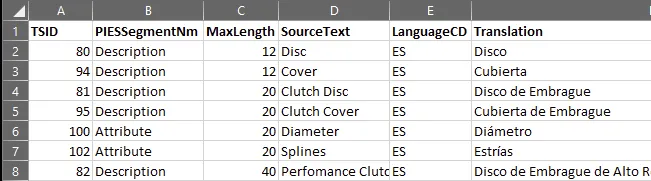
-
Maintain > Translations (again) to import the translated Excel file.
-
Change the Document definition to include the new language:
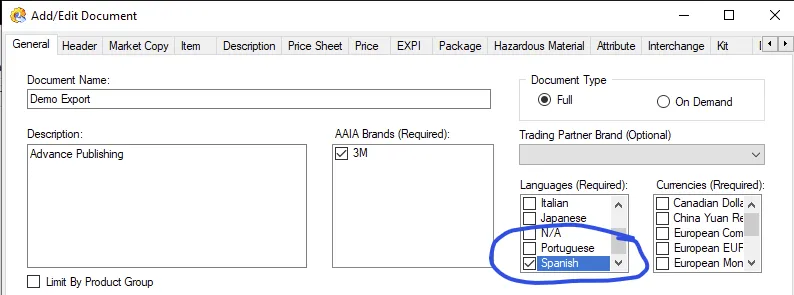
-
Publish as normal

Notes
❗Translations are not automatically updated when the English values change. You will need to
export the translations again and update them before every publish. Changed English values will
have a blank translation, so you can easily see what needs to be updated.
Market Copy is not translated in bulk, but translations can be entered manually (one at a time) using the Market Copy maintenance screen.
Digital Assets are also translated in bulk, but the exported translation file has a different layout.