PIESCentral Launch Service (Optional)
Overview
This document explains the installation and configuration of the Launch Service for PIESCentral &
PIESCentral Loader. Launch is a Windows Service that makes it possible to run an application remotely.
In our case, the Launch service receives requests from PIESCentral to run a scheduled process using PIESCentral Loader. This is required by the on-demand “Run Now” feature.
The Launch service must be installed on the same machine as PIESCentral Loader.
Installation
-
Download and install Microsoft.Net Framework 4.5 if it is not already installed. You can download it here. If you don’t install it in advance, the Launch installer will attempt to install it for you.
-
Download and install Launch. You can download it here.
-
By default, the Launch service runs under the Local System account. PIESCentral Loader will run under the same account as the Launch service.
Check the Task Scheduler to determine the account used to run PIESCentral Loader and change the Launch service to use that same account, using:
Control Panel/Administrative Tools/ServicesThe Launch service will appear as “Launch”.
Configuration
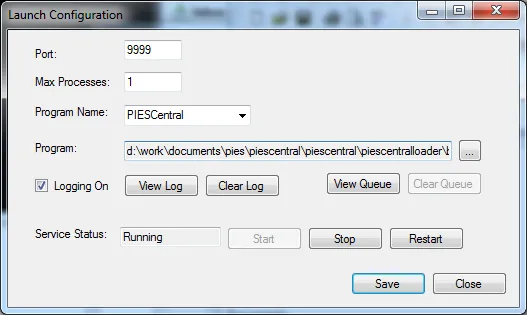
Run Launch Configuration
-
Port – Set the port to an unused port on the server. The default is 9999, which seems to work on most systems.
-
Max Processes – This is the maximum number of process allowed to run simultaneously. If the Launch service receives requests for more processes that allowed simultaneously, it will queue the remaining processes and run them as other processes complete.
-
Program Name – Type in PIESCentral.
-
Program – Select the full path to PIESCentralLoader.exe.
-
Logging On – Logging is primarily for debugging setup issues. Turn it on initially. Once everything is working, turn it off.
-
Use the Start, Stop and Restart buttons to Start, Start or Restart the service. The service is automatically restarted whenever you save a change to the configuration.
-
Save the configuration and start the service.
-
Make sure the firewall does not block connections on the selected port.
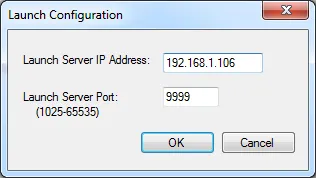
Run PIESCentral and go to Administration | Configure Launch.
-
Launch Server IP Address – Enter the IP Address for the server where the Launch service is installed.
-
Launch Server Port – Enter the same port used above when configuring Launch.
Validate Configuration
Verify that PIESCentral can communicate with the Launch service and start a process. Go to either Import | Scheduled Updates or Publish | Scheduled Publications. Select a process and click Run. Click refresh to check on progress. Look for results just as you would for a scheduled process.