Scheduling Processes (Enterprise Edition Only)
Overview
If you have PIESCentral Enterprise, you can automate repository refreshes (from existing import scripts) as well as the export of PIES data for your customers (from existing publication documents). To enable this functionality, you must first download and install (a) the PIESCentral Runner, and (b) the PIESCentral Launch service.
PIESCentral Runner allows you to run imports and exports from the command line rather than through the normal PIESCentral user interface.
PIESCentral Launch is a Windows Service that makes it possible to run applications without issuing the command manually through a user interface (which is required for the “Run Now” feature).
Download “PIESCentral Runner” Setup
This is a Windows installer that installs the PIESCentral Runner application. It is required to run scheduled updates and publications. The Runner is a command line application that can be run from the command line or from a Windows Task Scheduler task.
In most cases PIESCentral Runner should be installed on a separate machine from the one where PIESCentral is installed. It installs to its own directory (PIESCentral\Runner).
Run the Setup Program
-
Install PIESCentral Runner.
-
Run PIESCentral Runner Configuration.
a. Select the Server and Database (only trusted connections are supported at this time).
b. Enter the “Common Data Source Password”, if required, to access secured data sources.
c. Select a folder for the log files.
d. Leave the “Launch Server” information empty for now. You can fill that later if you decide to install Launch.
e. If installing on the same machine as PIESCentral, it is not necessary to register. Otherwise, press the “Register” button and use the same Registration Code you were provided for PIESCentral.
Configure Scheduled Updates
-
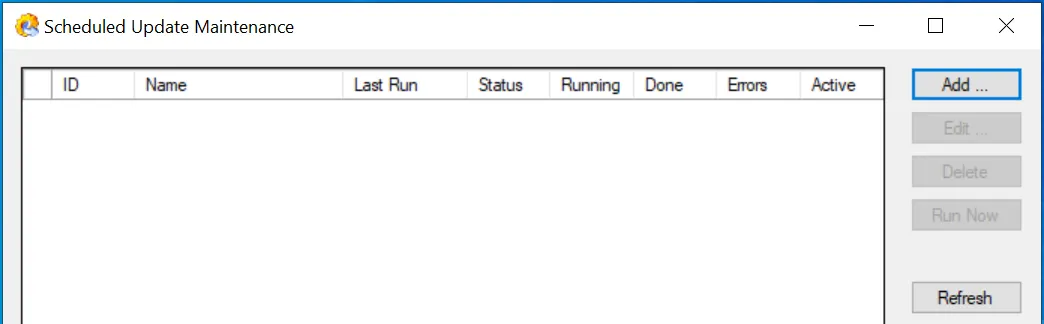
Run PIESCentral and bring up “Import | Scheduled Updates…”. You will see a list of existing scheduled updates in the grid (if any).
-
Press the “Add…” button to create a new scheduled update providing a unique ProcessID.
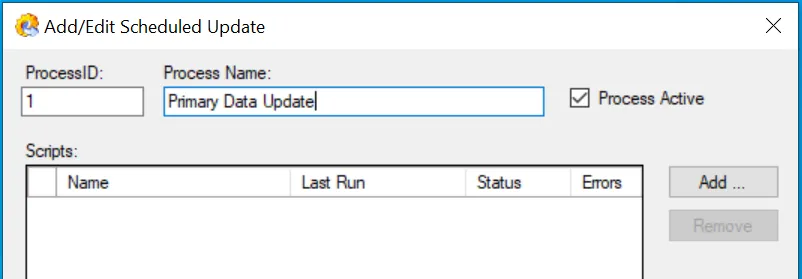
Add one or more scripts to the process. For initial testing, choose shorter scripts if possible. Select a script and set its “Frequency” to determine how often a script will be run.
To prevent a particular script from running, uncheck “Script Active” for that script. To temporarily prevent all scripts in the process from running uncheck the “Active” checkbox next to the Process Name.
Scripts will run in the order listed, and that order can be changed using the Up/Down arrows.
Configure Scheduled Publications
How PIESCentral Automation Works
Windows provides a program called “Task Scheduler” to schedule computer tasks to run automatically at specified times. PIESCentral uses this feature to start scheduled imports and exports.
A separate Windows “Task” must be configured for each scheduled process you create. This task would normally be triggered to run at the same time each day.
In order to provide additional flexibility, you can control the frequency of individual processes to occur less frequently than triggered by the Windows Task Scheduler. The scheduler runs the Runner and the Runner determines what needs to be done on that particular day.
This design makes it possible to reduce the number of scheduled processes that need to be set up with the Task Scheduler. For “Scheduled on Server”, the process always runs whenever the Task Scheduler launches the loader.
Adding a Windows Task
-
On the machine where PIESCentral Loader is installed, start Windows “Task Scheduler”.
-
To better organize our tasks, create a “PIESCentral” folder using “Action | New Folder”.
-
Select the PIESCentral folder and click “Create Basic Task” from the Actions panel.
a. Name the task (using the “Process Name” you created in PIESCentral is recommended). Press Next.
b. Select “Daily”. Press Next.
c. Select a time when the system is least busy. For testing, you could set a time a few minutes in the future. Press Next.
d. Select “Start a Program”. Press Next.
e. Enter something like the following using the actual process id you want to start. Notice you need to enclose it in quotes:
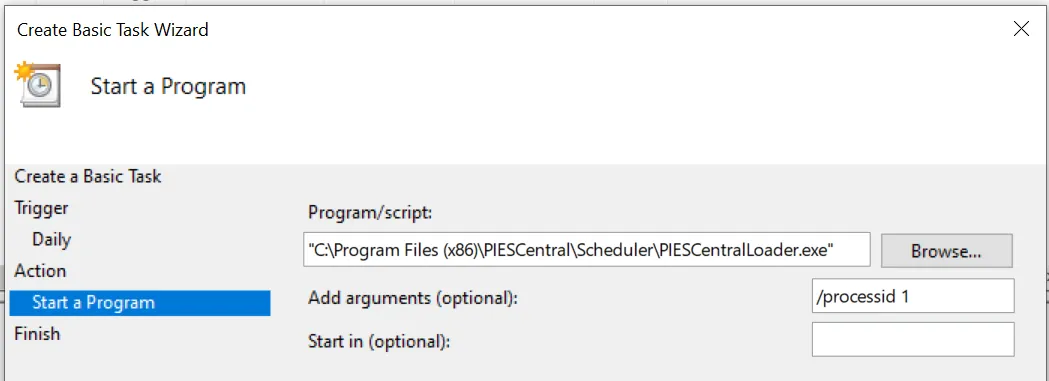
Check the box that says “Open the properties dialog…” and press Finish.
f. Press the “Change User or Group…” button, and enter “SYSTEM” as the account (recommended). If the task is run with a user name and you are logged on under that name, you will see a DOS window open when it is running. This should not be closed (or it will stop the process). You would also need to select “Run whether user is logged in or not” on this page if a user is used instead of SYSTEM.
g. The Actions tab should show something like this:
"C:\Program Files (x86)\PIESCentral\Runner\PIESCentralRunner.exe" /processid 1
Each Update Process requires its own scheduled task. It is possible to create multiple scheduled tasks with different scripts and have them run at the same time provided the machine has sufficient resources. It is also possible to install PIESCentral Loader on multiple machines to distribute the processing.
Monitoring
To see what scripts are running and their progress, bring up “Import | Scheduled Updates…”. Click the Refresh button to update the grid with the current status. (For very short scripts, it may not be possible to see the script actually running). The “Last Run” date/time will show the last time the script ran. For individual scripts, you can see the “Last Run” date/time on by bringing up “Import | Scripts …”.
Errors
Errors from a particular script can be viewed by “Import | Scripts …” and clicking the “Errors” button. This will always show the errors from the most recent run. The errors are also written to the Process Log. Look in the folder selected for log files. There will be a folder corresponding to the ProcessID containing a single log file for each run of the process.
Critical errors in the setup of PIESCentral Loader that don’t permit the creation of a log file are written to the application Event Log. Such errors would include such errors as “Unable to log in to the database” or “Invalid log file directory”.
You can now move on to installing the Launch Service (required if you want to use the on-demand “Run Now” feature).