Main Screen
When you first start the program, you will see the following screen.
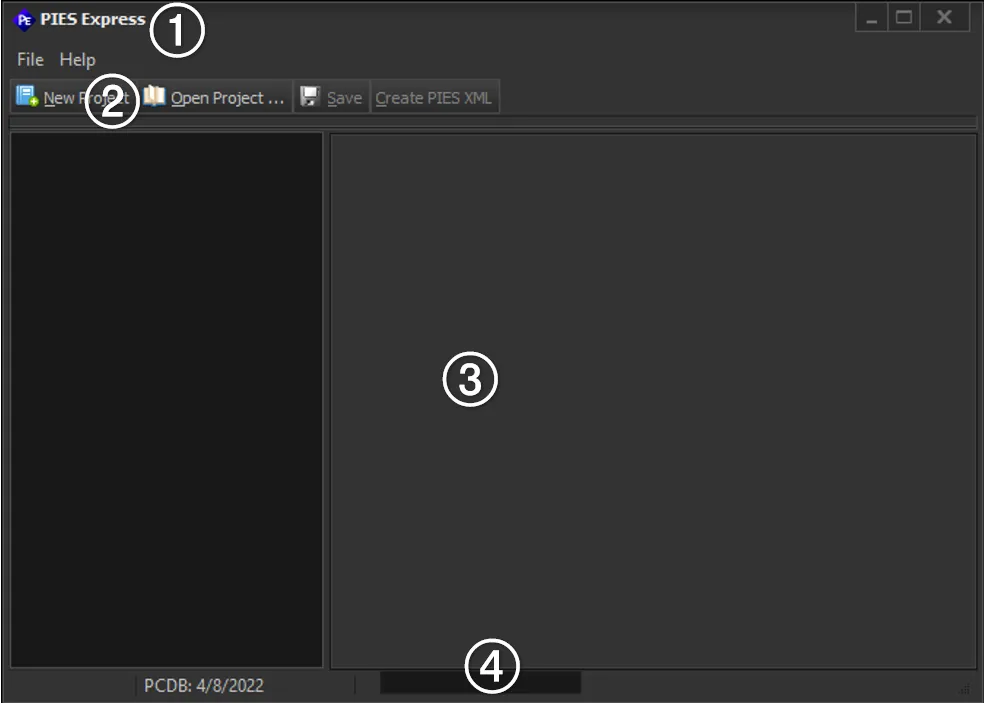
The main screen is divided into four areas: (1) Title bar, (2) Menu bar (with associated short-cut toolbar), (3) Current project (or blank as shown above because nothing is open yet), and (4) Status bar. The Title bar shows the program name followed by the currently open project name (if any). The Menu bar includes a “File” menu and “Help” menu.
File Menu.
The first “section” of the File menu provides ways to manage your projects. Each PIESExpress project is a separate file on disk with a “.piesexpress” extension. Menu items are provided to create a new project, open an existing project and save the project (optionally with a new name).
💡TIP: It’s recommended that you create a new directory for each project you work on, along with sub-directories for your data sources and output files.
Open PCdb
Use this selection to link to a saved PCdb (MS Access database). The location is remembered so you don’t need to open it each time you start the program, but it can be changed at any time. This “version” is shown in the status bar at the bottom of the screen (4).
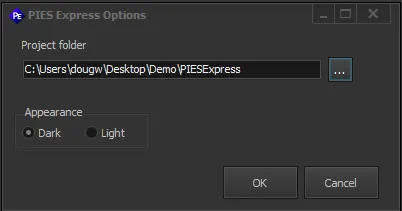
Program Settings (Options)
There are currently two user settings available on the Options screen: The “Project Folder” and program “Appearance”. The project folder defines where to find the project definition files you use to control the PIES publishing functions.