The Current Project
When you open a project (or create a new one), the main section in the screen will change to show the Project Tree on the left and associated settings for the selected item in the tree on the right. If you press the New Project button, for example, you’ll see this:
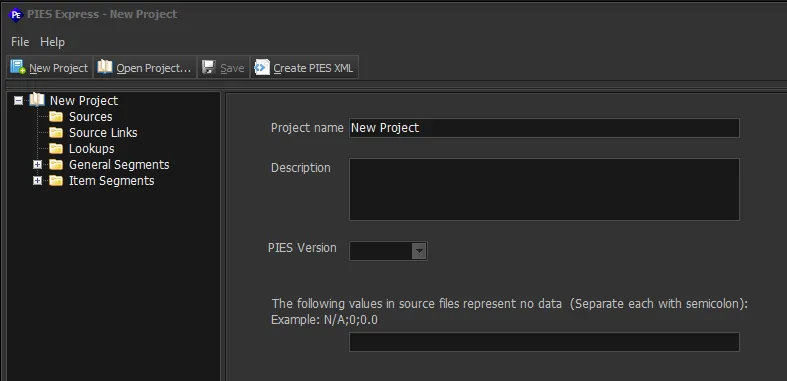
The area on the right relates to the selected root in the project tree with general project settings. Changing the “Project name” field on this form will show that name in the top item in the project tree.
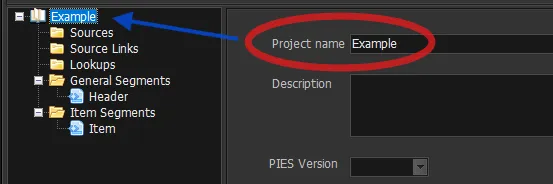
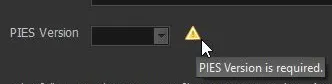
There can be, as in this case, required fields on a form. If you navigate to a different element in the project tree, it will make sure all required fields have been entered.
If any problems are found, a message dialog box is shown, and an indicator placed next to the problem field. You can hover your cursor over the indicator to see more about the problem.
For example:
In the project tree shown above, the General Segments and Item Segments (expanded here to show default contents) correspond to PIES “segments” as defined in the PIES Standard.
General Segments refer to non-item specific segments such as Header, Market Copy and Price Sheets; while Item Segments refer to item-specific segments such as Item, EXPI, Attributes, etc.
💡Double-click on a container in the project tree to expand it.