Sources
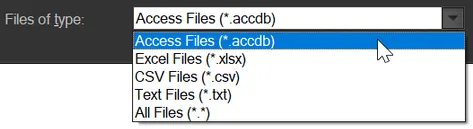
Each project requires at least one data source. This could be an Access Database (.accdb), an Excel file (.xlsx), a comma-separated-values file (.csv), or a delimited-text file (.txt).
To add a new data source, click on “Sources” in the project tree and right-click to show the “Add” option. Give the source an internal name (e.g. “Main”) and select the Filename. A standard Windows File Open dialog is displayed. Use the “Files of type” drop-down to select the type you need:
If the file type is not Access, you will probably have a file with column headings. If this is the case, check the “Has field names” option to tell the program to use the first row as column headings.
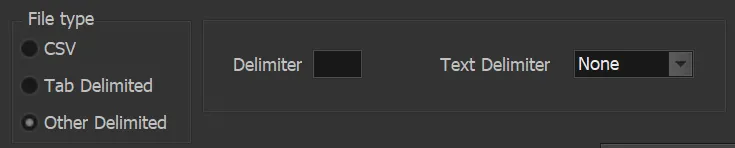
If you select a delimited text file (that is not tab-delimited) you will need to fill in some other information as shown here:
You can add as many Sources as required, provided they have a related column in common (so they can be joined together). This is normally done with a Part Number column in each source file.
It is a good idea to press the “Test Connection” button after selecting the file to make certain it is accessible by the program.
💡TIP: Save your work periodically using File > Save (or the 💾Save button on the toolbar).