Comment Consolidation
Changes to the NAPA ecat system made in July 2019 now enforce an undocumented rule referred to as “same, except comments”. This rule means you cannot have applications that have everything on the app the same except for the comment field.
ProMapper allowed “same, except comment” applications (aka ORed applications) in the past, but now provides a way to merge or “consolidate” these comments. Note that this issue is often caused by ACES source data (which does not allow ORed vehicle attributes), or overlapping applications.
In order to satisfy this requirement, ProMapper now includes a way to help you combine ORed comments into new “Pending” comments (that are then added to the NAPA Comment table for use on your applications).
Preparing for Consolidation
Update any required “helper maps”, open the Map Applications screen and press “Auto Map” (to create PartsPro applications). After correcting any unmapped applications and overlaps, you’ll usually want to use the Process > Consolidate applications process to remove any over-mapping (i.e. redundant conditions that are not required to determine which part to select).
Comment Consolidation
Once you’re happy with the NAPA mapped applications, you need to perform two additional steps before requesting Pending Comment assignment from NAPA and publishing your file.
1. Process > Consolidation Application Comments. When you start this process, ProMapper will search through the NAPA applications looking for any “same, except comment” issues. It then presents a unique list of these comments on the screen along with a special “Combine Quantities” check-box.
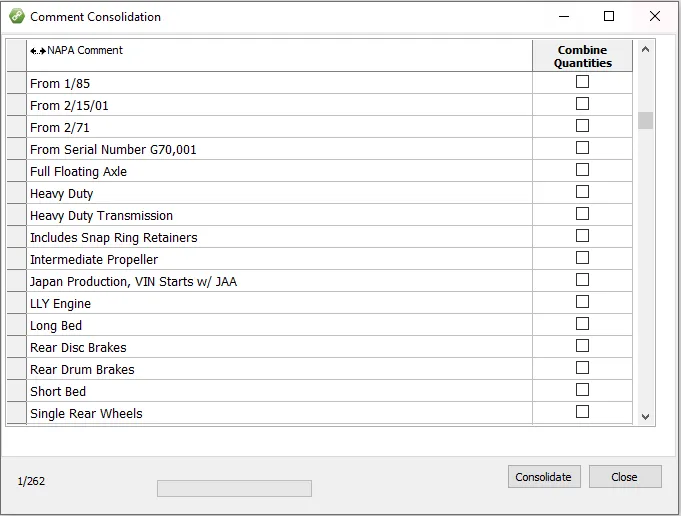
At this point, you should review the list for any “Position” comments (e.g. “Left”, “Front”, “Rear Upper”, etc.) and check the “Combine Quantities” option for them. This tells ProMapper that applications that include these comments effect the Per Car quantity and so should be added together.
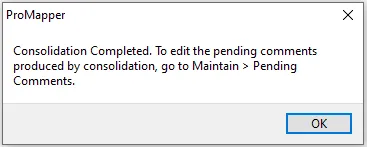
When you are finished reviewing the comments for positions, press the “Consolidate” button. When this process is complete, you should receive the following message:
2. Maintain > Pending Comments. The comment consolidation process creates new “pending comments” which is a combination of ORed application comments. ProMapper combines these separate comments with “or” and ”&” separators. The next step is to review these new comments, and change them to read well (💡or make changes in your source data to remove the need for consolidation).
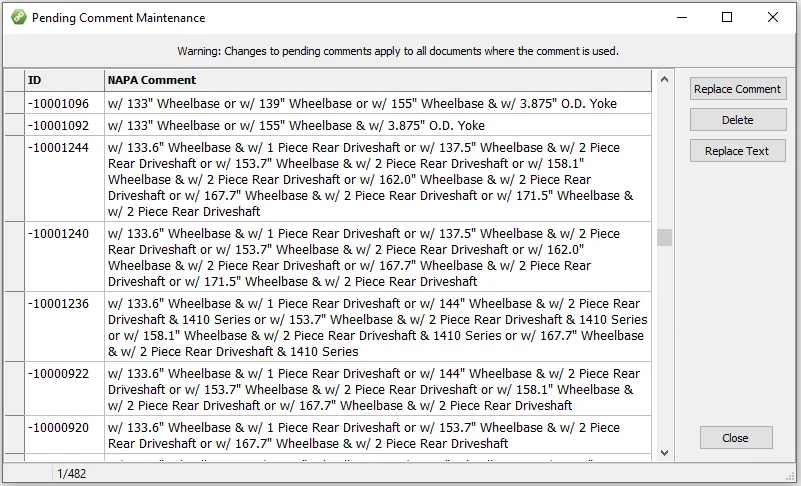
As you can see, some of these comments might get very complicated. In order to help you see how these comments were created, open the Map Applications screen, and right click on a row.

This will filter the Map Application screen to only show rows used to create this new comment (if the right-click option is disabled, make sure that you have the Map Application screen open). For example:
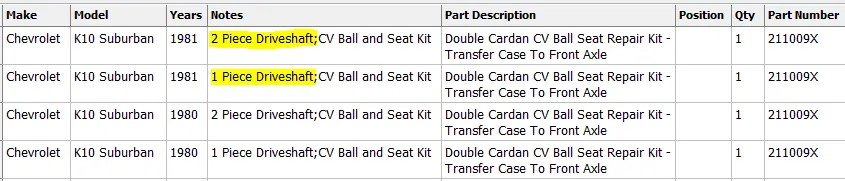
Note that the ORed comments might apply across models, years and part descriptions. Also note that the comments are sorted alphabetically when combined. So in this case, the “2 Piece Driveshaft” sorted before the “w/ 1 Piece Driveshaft”. This is probably not, however, how you would like them combined.
To edit a pending comment, simply click in the cell and make any desired changes.

Alternatively, you can press the down arrow to open a larger (and sizable) edit box. This can be especially helpful if you have a complex expression and you need to break it by “or” to better understand what it is saying:
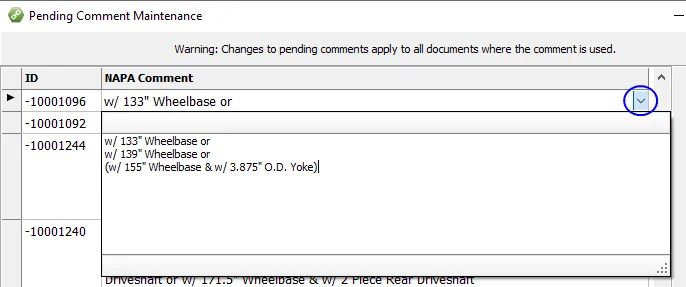
You might change it to something like the following:

Other Examples:
Power Steering or w/ Manual SteeringThis comment can safely be “ignored”. Press the “Delete” button. It will remove this pending comment from all applications (since it is redundant).
w/ 165" Wheelbase or w/ 4000 lb Axle & w/ 131" Wheelbase or w/ 4000 lb Axle & w/ 149" WheelbaseThis comment can be thought of as 3 different notes (or’ed together):
w/ 165" Wheelbase or
w/ 4,000 lb Axle & w/ 131" Wheelbase or
w/ 4,000 lb Axle & w/ 149" Wheelbase
Which can be re-written as:
w/ 131", 149" Wheelbase w/ 4000 lb Axle; w/ 165" WheelbaseIt is a good idea to stay away from “or” because it might not be clear what it refers to. Parenthesis and semi-colons can be used to break things up. It is also helpful to combine terms where you can with commas (such as the Wheelbases). You could also add other parentheticals to make the meaning clearer, like with the following (but it gets a bit wordy):
w/ 131", 149" Wheelbase (w/ 4000 lb Axle); w/ 165" Wheelbase (w/ All Axles)Here is an example of where the “or” can be confusing:
w/ Manual Steering or w/ Power Steering w/ Rally SuspensionDoes that mean?:
(w/ Manual Steering or w/ Power Steering) w/ Rally SuspensionProbably not, but it’s still confusing. We would probably recommend writing it like the following (notice the use of a semicolon):
w/ Manual Steering; w/ Power Steering w/ Rally Suspension“Replace Comment” Button
This function allows you to select an existing Comment (even a pending comment) to replace the selected one. This uses the standard Comment lookup screen.
”Replace Text” Button
This function allows you to perform standard search and replace operations on all of the comments in the grid.
⚠️Note: if you import an updated source file (File > Import applications), and any applications were changed that affect pending comments, those pending comments will no longer be attached to any apps in that document and will not show up on the Pending Comment Maintenance screen.