Import Applications (Wizard)
A series of screens (aka Wizard) is provided to walk you through the import process. The first screen selects the file and file format (.csv, tab-delimited, etc.). It is important that you select the proper delimiters if using a text file. Also, you will generally be using a file with the first row representing field names.
The second screen is what allows you to match up the import columns to the “Column Type” expected by ProMapper.
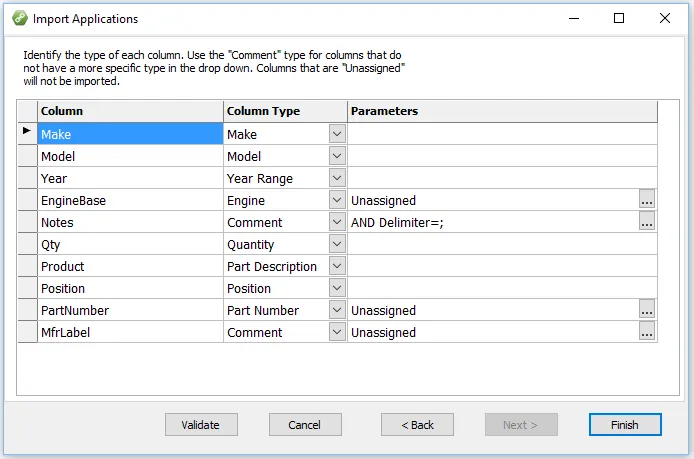
The following table describes the Column Types that can be assigned to an import column and what parameters, if any, are supported.
| Column Type | Description | Parameters |
|---|---|---|
| Make | The make referred to by the application. This column is used by the Map Makes screen to translate your makes to their NAPA equivalents. Required. | n/a |
| Model | The model (or models) used in the application. This column is used by the Model Map screen to translate your models to their NAPA equivalents. | n/a |
| Engine | An Engine column should be defined if a separate column is used to indicate the engine. If possible, only include Engine Base information in this field | n/a |
| Single Year | Use a Single Year column type if your file puts a low year in one column and a high year in another. You can only define two columns with the Single Year type. You must include some type of year column (either one or two Single Year columns or a Year Range column). | n/a |
| Year Range | Use the Year Range column type if your file includes a range of years separated by a hyphen. | n/a |
| Quantity | The number of parts required for this application. If this column is missing, the system will assume one part for each application. | n/a |
| Part Description | Part Description columns will be used in the Part Description mapping screen. If no Part Description columns are defined, you must define a Part Description of the entire file in the Part Column Parameter screen. | n/a |
| Position | Refers to where the part should be installed for this application. You will use the “Map Positions” function to translate these locations to ones defined for each Part Type. | Use if the positions are needed to limit the Part Description maps, otherwise code as Comments |
| Comment | Refers to the application note or comment field that you will translate into Vehicle Attributes and Notes with the “Map Comments” function. You can have multiple comment columns in your data. | AND delimiter, Prefix, Suffix and Footnote for Part Number column. |
| Part Number | Used to indicate a part number is contained in the column. Multiple Part Number columns may be defined, but you must define at least one. | If no part description in row, add one here. Same with Position. |
The first time you import a new file structure into a document, you’ll need to identify the columns and optionally supply import “parameters” for those columns. Subsequent imports will remember those settings as long as the file structure (field names and field order) is unchanged.
A common parameter is the “AND Delimiter” which allows you to split the field into separate notes. This can greatly simplify Comment mapping (because you don’t need to handle every combination of comment). It is very important that the delimiter selected could not also represent a logical OR (such as in a list of submodels).
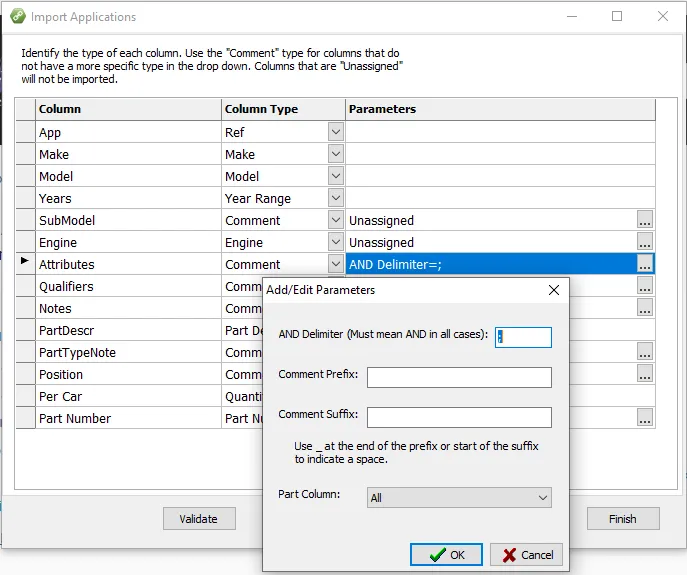
The “Comment Prefix” and “Comment Suffix” fields are useful if you have attributes separated in fields within your source data. For example, if you have a “Liters” column, it might only have values like “2.0”, “2.8”, “3.0”, etc.
If you were to import that data without any prefix or suffix, it would show up in the Comment mapping screen without any real context. We would normally like to append an “L” to those values, so the mapping would be “2.0L”, “2.8L”, etc. To do this, you put an “L” in the “Comment Suffix” parameter field for the Liters column.
Another common example might be “Engine VIN”. Without a prefix/suffix, it would just be “A”, “B”, “C”, etc. So you might put a Comment Prefix: [VIN ”] and Comment Suffix [”]. So the data would show up as [VIN “A”], [VIN “B”], etc. (We have used brackets here just to separate things visually. You wouldn’t include them.).
The “Part Column” is used if you have more than one “Part Number” defined and you want this note to apply only to a particular part number. This is particularly useful for part footnote columns.