Publishing PartsPro Applications
The first time you use Process > Publish, the “Publish Applications” screen is displayed with an empty Brand grid:
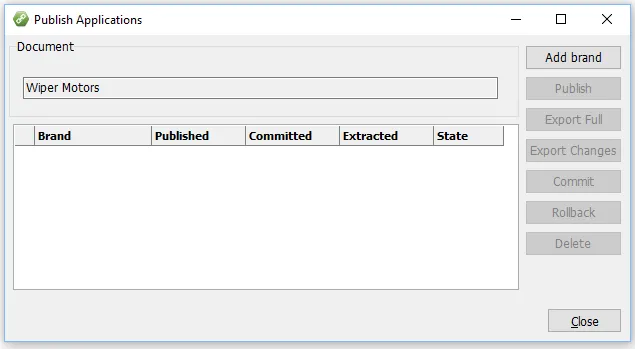
All publishing happens at the “Brand” level (in most cases, this would be US and or UAP Canada).
Press the “Add brand” button to include the desired brands to publish. They will show up as rows in the grid. Each of these rows represents a published document with the ability to generate Net Changes. If you “Delete” a row in this grid, you will remove the history and the ability to generate Net Changes.
When you select a row in the grid and press the “Publish” button, the “Publishing Options” screen is displayed:
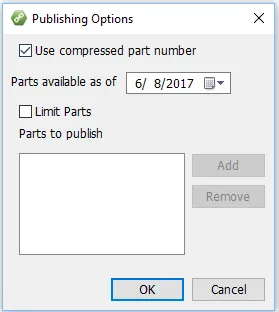
The “Use compressed part number” option will remove any invalid characters from the part number (such as hyphens and spaces).
The “Parts available as of” date only matters if you have loaded part numbers with a future status date. This option gives you the ability to defer publishing some applications based on new part launch requirements.
The “Limit Parts” check box enables you to enter a list of one or more part numbers that you want to publish. Only applications with parts in that list will be sent out. This can be helpful for “Net Add” type files.
Press OK and a status bar will display while the system collects applications for publishing. Once finished, the Published column in the brand grid will be updated with the current date/time, and you can then move on to “Exporting”.
Exporting
You have two options for exporting your PartsPro application data: (1) Export Full, or (2) Export Changes. Generally, you would send a Full file initially and net changes for subsequent runs.
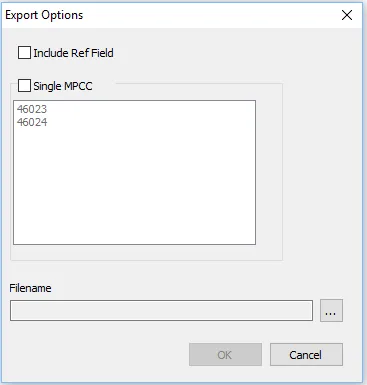
The “Include Ref Field” should ONLY be used for internal processes. Using this option could disallow net change processing by NAPA. This option includes your “Ref” data in the User Defined field of the PartsPro file.
Select the “Single MPCC” option if you want limit the export to one of the MPCCs found in the file.
Press the […] button to provide a file output name and location. It is a good practice to include the company name, the product category, FULL or UPD, and today”s date. For example:
ACME_WiperMotors_UPD_2017-10-22.txtPress OK to generate the file and you ProViewer to see the file in a decoded form.