Notes Processing
Unlike the other tabs on the Part Column Editor, Notes are not part selectors. Your application doesn’t need to match any of the fitment notes defined here in order to be selected for that part column. The Notes tab is simply a way to translate one note terminology into another (in case they are inconsistent or come from different sources).
Notes only translate Note tags and Qualifiers — not Vehicle Attributes.
With the Move to Part Column option (see the Part Column Editor), matched notes can also be treated as footnotes and moved from the stub column into a reference in the part column.
All comparisons are case-insensitive — for example, AbC matches abc.
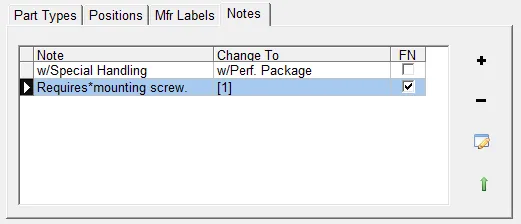
You must always provide a Change To
The maintenance screen will not let you enter a Note without a Change To value, because doing so would
make it very easy to lose information about an application without realizing it. If you really want to remove
a note, include a special value like <ignore> and handle removing it externally, or change it to a simple
footnote (such as an asterisk or plus sign).
Wildcards
The Appl Note field supports wildcards (*). An asterisk matches zero or more characters and you can use
multiple asterisks. (Examples: *a, a*, a*b, a*b*c, etc.)
You would typically use a wildcard when several notes are similar but have a variable portion you don’t care about. For example, the application note:
Requires Installation Fitting Kit 90-1090could be matched with:
Requires Installation Fitting Kit*Note order matters
Allowing wildcards means the order of notes is significant. Green up/down arrows change the order; notes higher in the list are applied first.
If you want to remove all but a few important notes from your applications, place those important notes at the top of the list and put a single asterisk last.
⚠️ Warning: an asterisk by itself matches all notes and so has the effect of removing them — except that you must still change them to some stub text or a footnote.