Launching AceViewer
There are several ways to open an ACES xml file for viewing:
- Double-click the executable or desktop shortcut.
- Drop an ACES xml file onto the executable or shortcut.
- Start the program first, then drop an ACES xml file onto the grid.
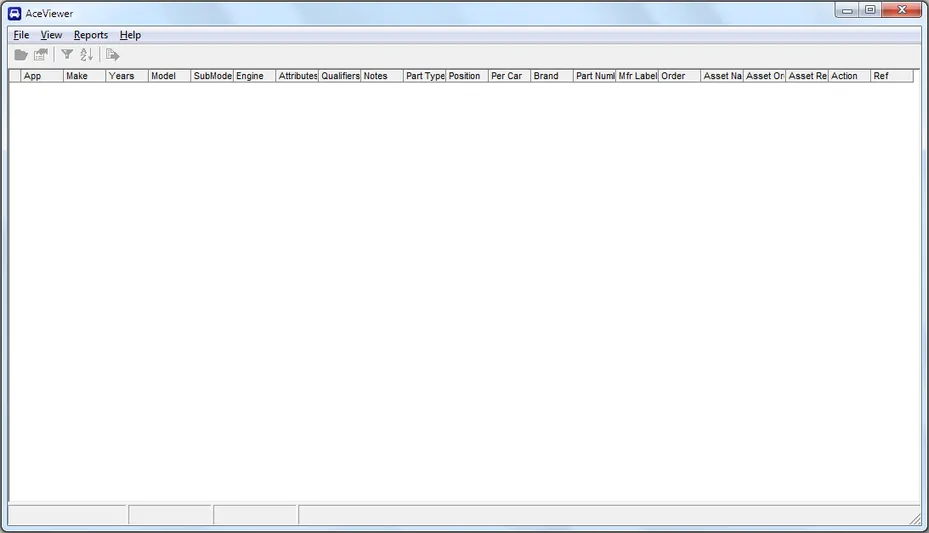
When you first start the program, you will see the main screen below. Columns are kept the same for all ACES versions for consistency, making it easier to work with files from different versions side by side.
File menu
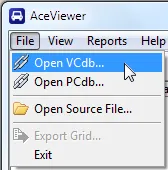
Before you can view an ACES xml file, you need to open both a VCdb and a PCdb database (the Microsoft Access versions) so the program can translate the id numbers found in the xml. See AAIA Vehicle Tables for details.
The locations of these files are remembered, so you don’t need to open them each time you start the program, but they can be changed at any time. When opened, the version of each database is shown in the status bar at the bottom of the screen.
Once you have the vehicle and part type databases open, you can open an ACES file from the File menu, the toolbar folder icon, or by dragging a file onto the main screen or the program icon. When an ACES file is loaded, the Export Grid… function becomes available — see Exporting the Grid.