Application Import
ProMapper has the ability to import source applications from several file formats and field layouts. Here are a few general rules to consider and the steps to follow to import your application data for mapping.
Source File Rules
-
The file must be either a Text file or Access database table (or query).
-
Make and either Model or Engine must be mapped. NAPA requires model on the application. If the source application has Engine but not Model, NAPA applications will be created for all models having that engine within the year range of the application provided all other conditions are valid.
-
If the source application has “All” or “All Years” in the year range column, or if neither single year nor year range is mapped, the Napa Vehicle table alone determines the years the application is valid.
-
The imported applications do not need to have NAPA part numbers. If you supply both NAPA US and NAPA Canada, part numbers may differ and some parts may be available only in the US or only in Canada. Consider using your primary brand parts for the application import. Then separately import interchanges to the NAPA brands.
-
The “Position” column type should only be used if the included positions are needed to limit the Part Description maps. If not, the best approach is to just select Comment as the column type for a position column when importing the source file. You could then map that position comment to a NAPA comment.
Import Steps
-
Make sure you have your Manufacturers and Brands setup as explained in the Getting Started article and that you have an application file available using the above rules.
-
File > New Document. This screen lets you create a new “document”. (Documents are defined in the Getting Started article).
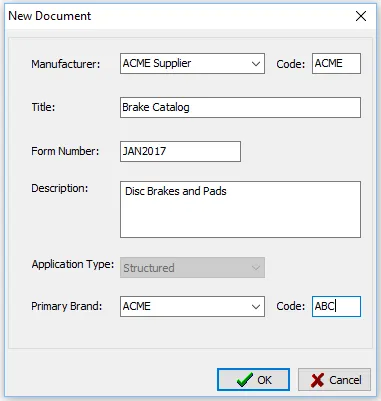
💡TIP: The “Form Number” will be shown in the Open Document dialog, and so it often helpful to use it as an indication of the last time the mapping was performed for this data set.
⚠️If you are performing an update mapping, do not create a new document. Simply open the existing document used last time for that catalog and import into that document (File > Open Document).
-
File > Import Applications. Now that a document is “Open”, you can import your application data into it. You should always import the full data set (not just the changed records). This command will display the standard Windows Open dialog:
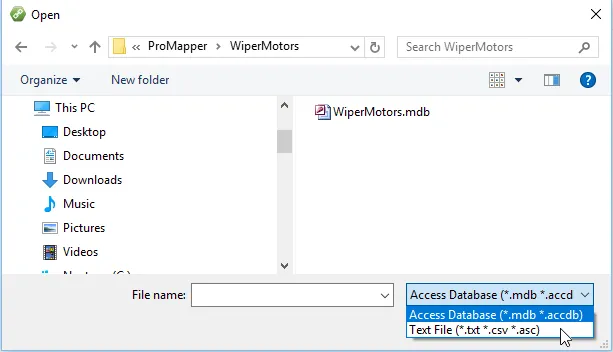
Note that the file type defaults to “Access Database”, you will need to change that to “Text File” if you are opening a .txt, .csv or .asc file.
Once you have selected your application data file, the Import Wizard will begin to walk you through setting up the file type (if text file) and file structure mapping.